
When managing FortiGate devices with FortiManager, configuration changes made in the device database are not applied automatically. This article explains how to install device-level configuration changes on managed FortiGate devices using FortiManager, covering the Install Wizard and Quick Install methods.
Installing Device Settings#
After making changes to a managed device configuration from FortiManager, they are not automatically applied to the FortiGate. Different installation methods exist for actually applying device settings to a managed FortiGate, including:
- Install Wizard
- Install Policy Package & Device Settings
- Install Device Settings (only)
- Quick Install (Device DB)
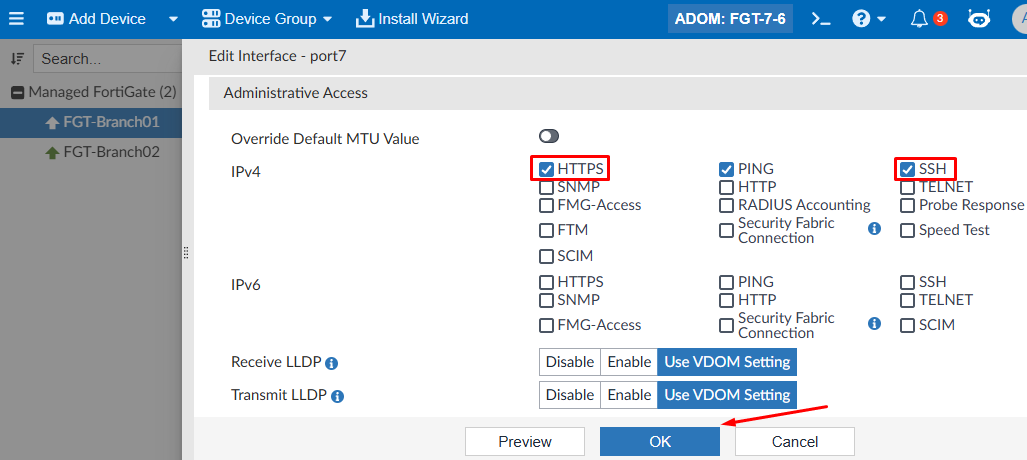
For example, an interface administrative access is changed on a managed FortiGate:
- Under
Device Manager > Device & Groups, select the desired device to be configured. - In this example, port7 is edited:
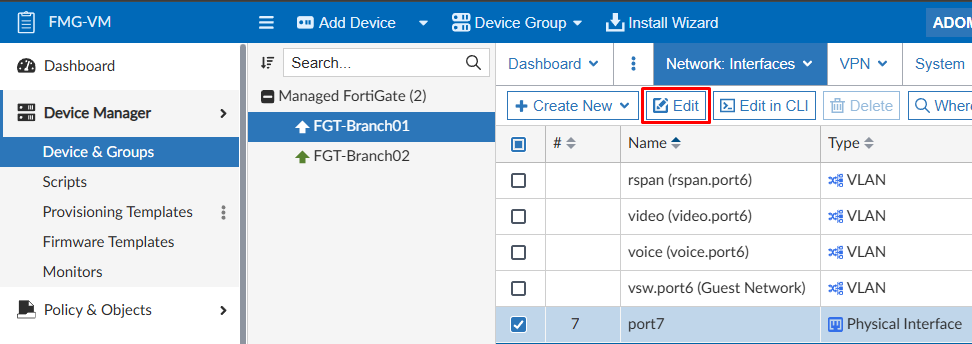
- HTTPS and SSH administrative access is enabled on the device:
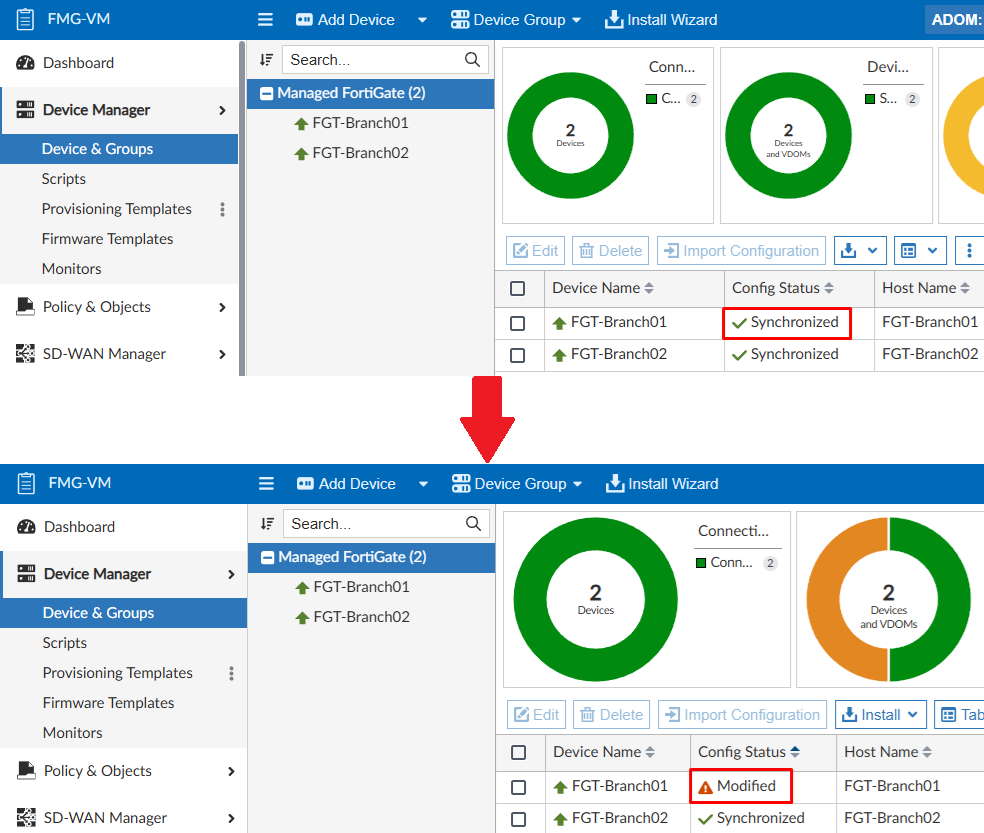
- Returning to the managed devices list, verify the
Config Statusof the device has been changed from Synchronized to Modified:
- Navigating to the device database, go to
Dashboard: Summaryand scroll down to theConfiguration and Installationwidget. Here, theInstall Previewoption allows to verify the changes made to the device database on FortiManager:
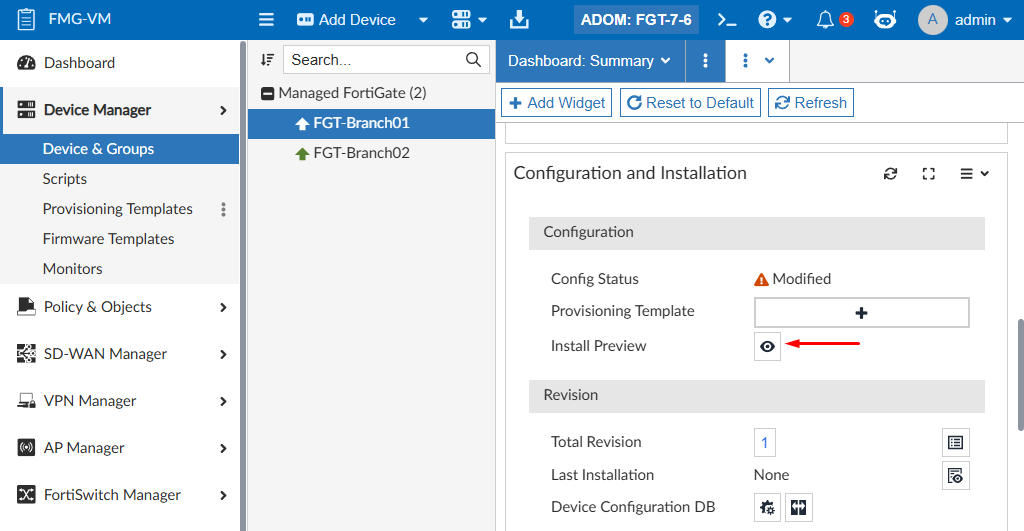
This preview includes the commands that will be configured on the FortiGate once they are send for installation:
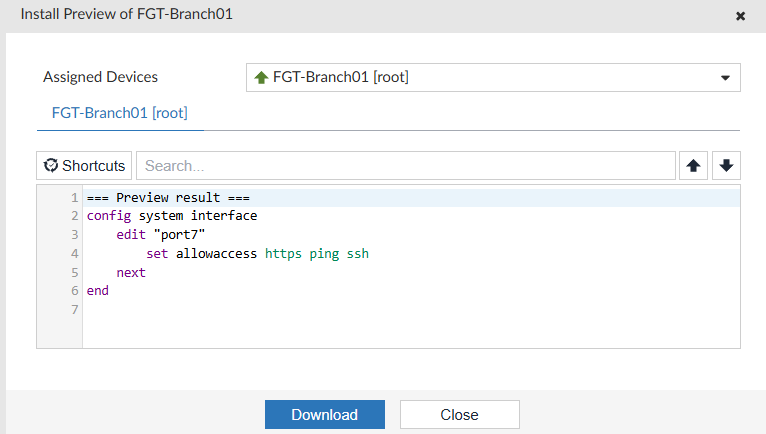
Up to this point, the FortiGate managed device hasn’t received these changes. These must be applied using one of the installation methods on FortiManager. Following, the different install methods are discussed and tested.
Install Wizard#
To install changes on a managed device from FortiGate using the Install Wizard, follow these steps:
- Under
Device Manager > Device & Groups, select the device (or devices) where new configuration settings will be applied. Then selectInstall > Install Wizard(alternatively, select theInstall Wizardoption at the top bar):
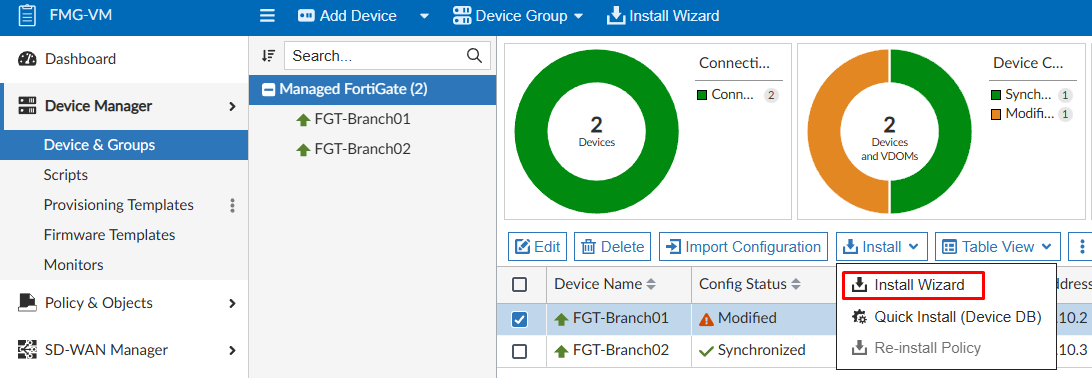
- As the first step of the Install Wizard, the
Install Device Settings (only)option is selected in this case. However, the install wizard provides two options.
Install Policy Package & Device Settings- select this option if changes have been made to the device-level configuration and policies in the policy packages:
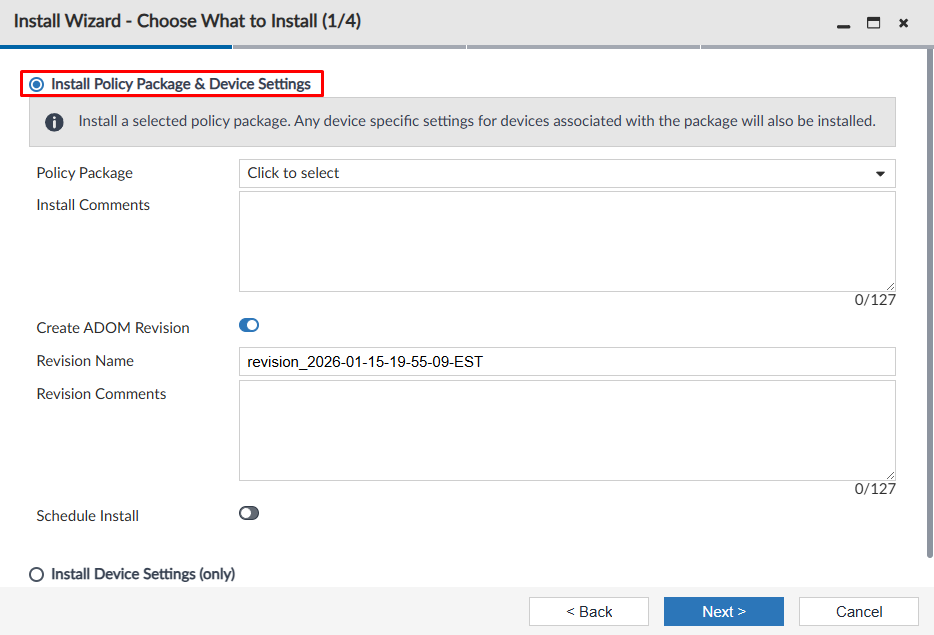
This option will effectively install the device-specific settings and the policy package changes.
Install Device Settings (only)- select this option if only device-level changes been made from FortiManager:
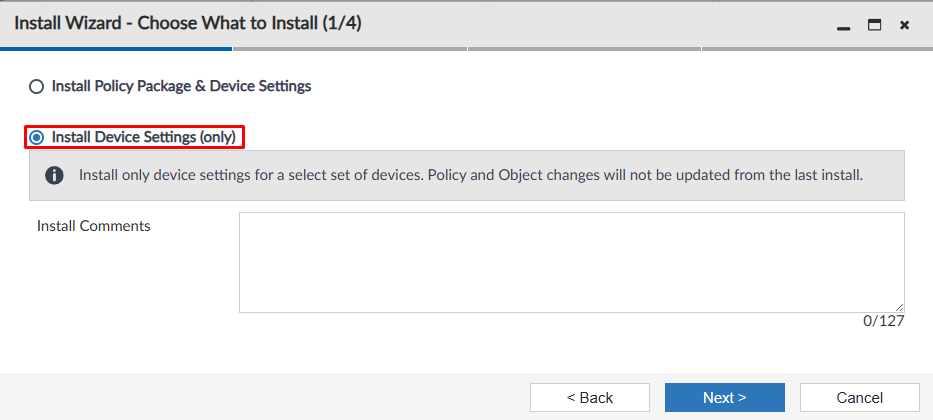
This option will effectively install device-specific settings but the policy package settings won’t be modified.
- On the next step, you can select the device(s) on which you want to install the changes:

- On the third step, FortiManager checks the device settings comparing them with the latest revision history. The
Install Previewoption allows to view the configuration changes that will be installed on the FortiGate:

The installation preview menu allows to download the configuration changes on a TXT file:
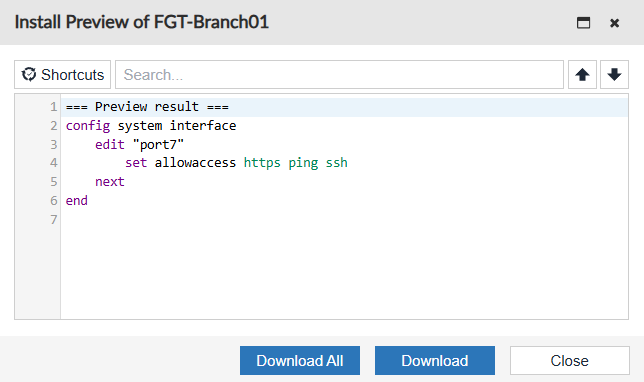
If this validation results in a conflict error, fix the configuration problem and execute the Install Wizard again.
- The last step to actually apply the configuration on the managed device(s) is to select the
Installoption. The installation process starts:
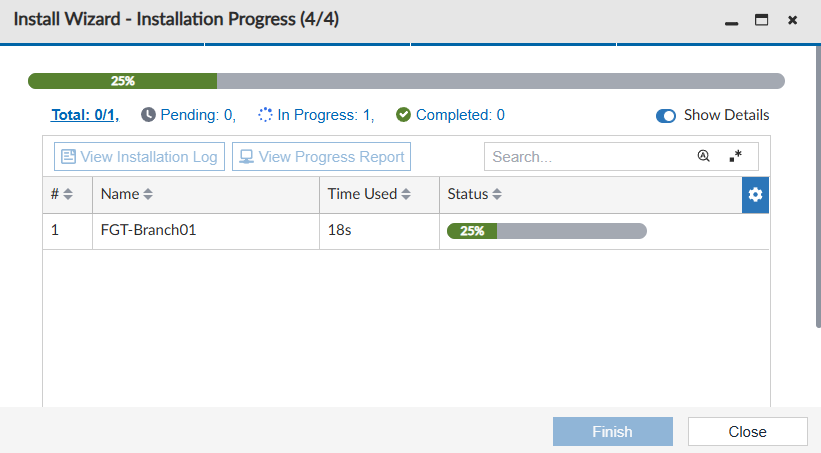
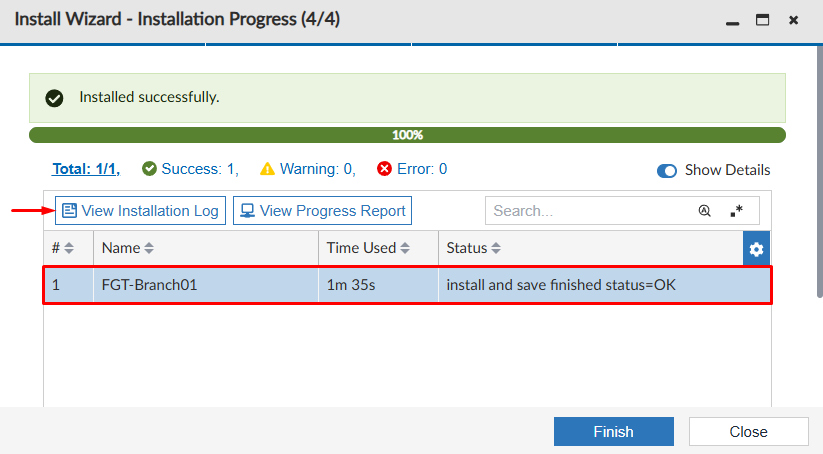
- Once the installation process finishes, you can select the task and press the
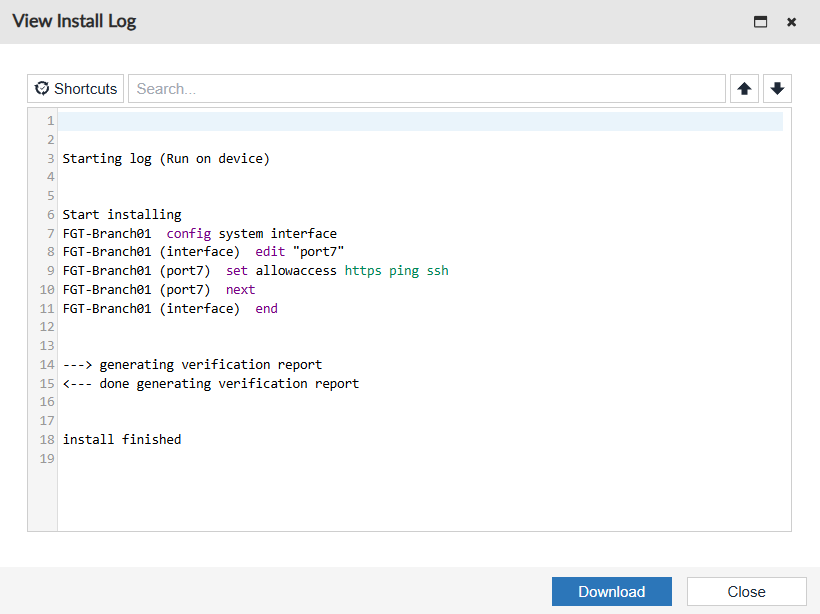
View Installation Logbutton to view the configuration changes installed on the device:
In case an installation error occurred, the log will reflect where the failure happened:
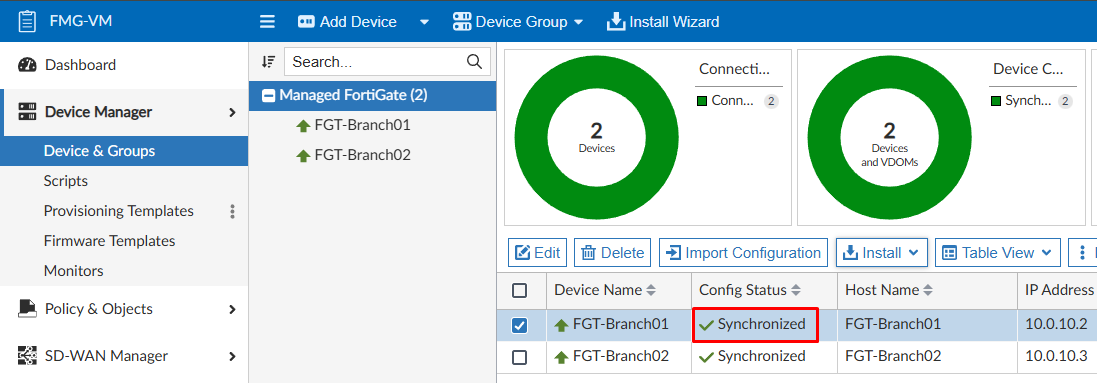
- In case the installation was successful, the device
Config Statusshould now be Synchronized:
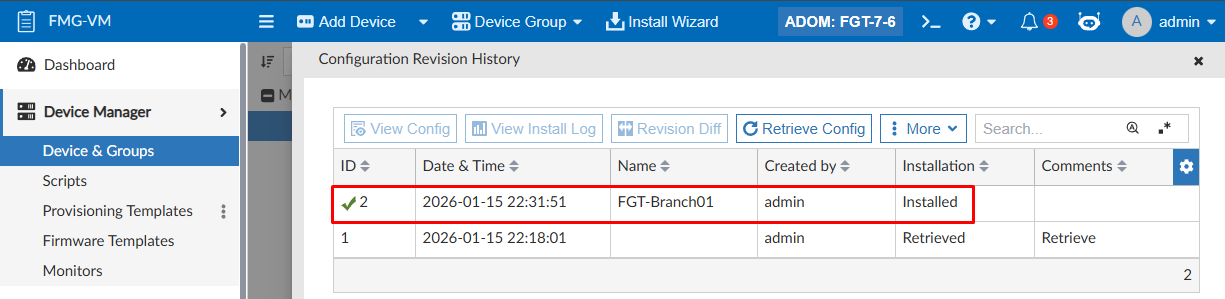
A new configuration revision is also created:
Quick Install (Device DB)#
An alternative option for installing device-level settings on managed devices from FortiManager is to use the Quick Install (Device DB) installation. This is a faster way for applying changes compared to Install Wizard, however you can’t preview these changes before applying them.
Quick Install (Device DB), use the Install Wizard instead to have a preview of these changes.To use the Quick Install (Device DB) installation method, follow these steps:
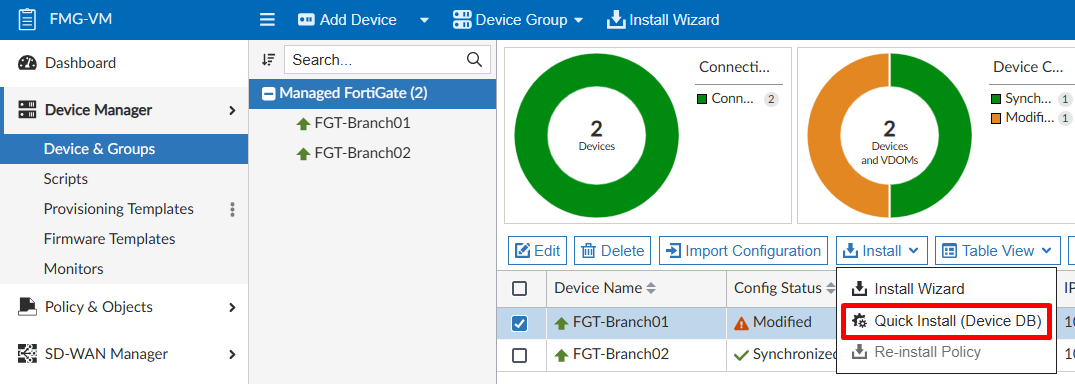
- Under
Device Manager > Device & Groups, select the device (or devices) where new configuration settings will be applied. Next, selectInstall > Quick Install (Device DB):
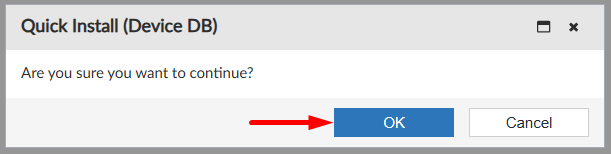
- The device-level settings will be applied right after pressing
OK:
- Wait for the installation to complete and press
Finish:
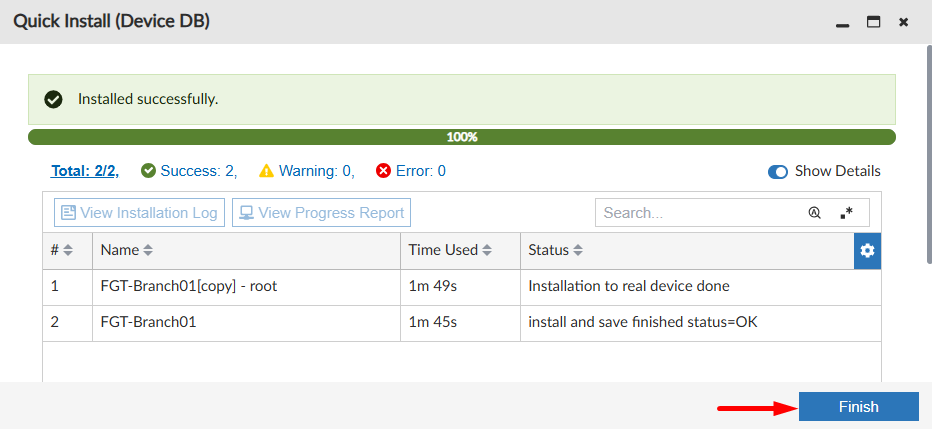
Once the process finishes or interrupts because of an error you can use the View Installation Log button to get more details.
Installation Process Summary#
This diagram explains two different processes regarding device-level settings changes and the installation process on FortiManager:
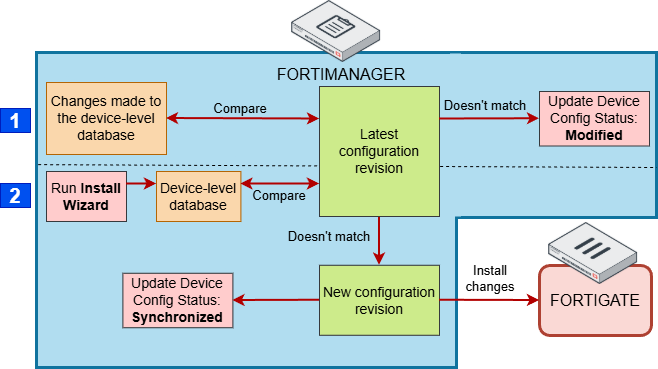
- When making changes to the device-level database it gets compared to the latest configuration revision of the managed device. If they don’t match, the device config status is changed to Modified.
- When running the Install Wizard to install changes on a managed device, FortiManager compares the latest configuration revision with the device-level database. In case they are different, FortiManager creates a new configuration revision, install the changes on the managed devices and changes the managed device config status to Synchronized if the changes were successfully installed.