FortiManager scripts are used to automate, standardize, and bulk-manage configuration tasks across one or multiple FortiGate devices. They are especially useful in environments where manually configuring devices would be slow, error-prone, or inconsistent.
Script Running Locations and Formats#
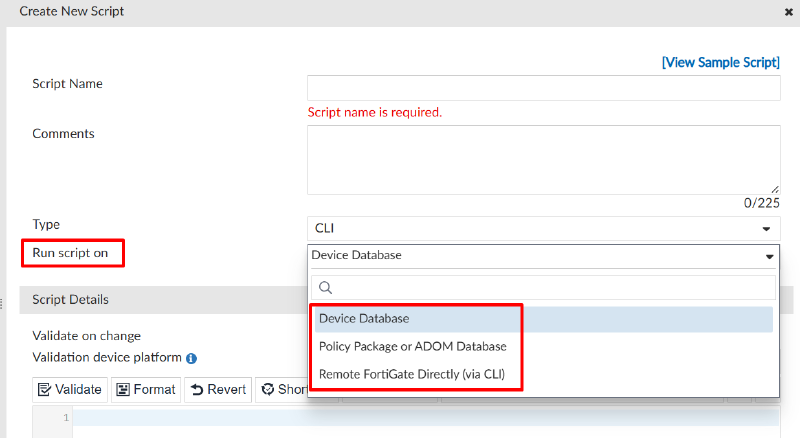
There are 3 locations where scripts can be run. Depending on the changes you want to make, you can select a different location:
- Device Database: the script is executed on the device database (FortiManager copy of a specific managed device configuration). Once you run a script on the device database, changes are not yet applied to the managed device. You can install those changes to the managed device using the installation wizard for example. This option is specially useful for device-specific settings (interface, routing, system settings, device-specific objects)
- Policy Package or ADOM Database: this option runs the script against the shared policy/object database inside an ADOM. This is best suited for changes related to ADOM-level objects and policies. Changes need to be installed on the device using the installation wizard. Use this option for changing firewall policies, address objects, service objects, VIPs, etc.
- Remote FortiGate Directly (via CLI): the script is executed directly on the selected device, so changes are automatically applied. In contrast with the other options, changes are not previewed before they are applied. This option is useful for troubleshooting (debug commands), applying emergency changes, and operational tasks. After running a script with configuration changes directly on FortiGate, you should then import the configuration from FortiGate to FortiManager to update the script changes into FortiManager database.
There are also 3 compatible formats to write scripts (aka types of scripts):
- CLI: uses FortiOS CLI commands only. Commands are specified as you would type at the FortiGate CLI. You can make comments on the script, which are not executed, using the number sign (
#). Multiple CLI scripts can be groups inside a CLI script group. - Tool Command Language (Tcl): this is a dynamic scripting language, providing more functionalities to your scripts like global variables and decision structures. Unlike CLI scripts which are run through the FGFM tunnel, Tcl scripts use SSH. Check information about Tcl scripts here: https://www.tcl-lang.org/
- Jinja Script: used to create scalable and dynamic scripts, which can be applied to the FortiManager ADOM database.
Reference: FortiManager 8.0.0 Administration Guide - Scripts
Configuring a CLI script#
To create a CLI script, follow these steps:
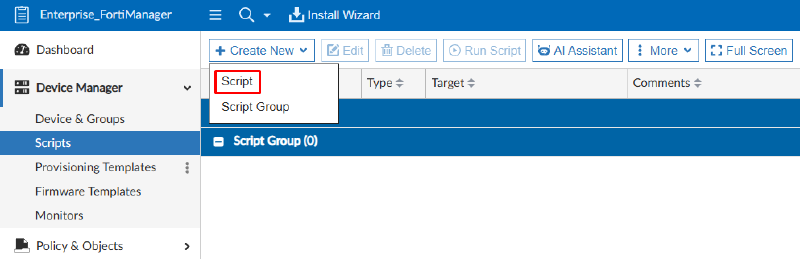
- On FortiManager, navigate to the ADOM where you are planning to run scripts on. Go to
Device Manager > Scripts, and selectCreate New > Script:
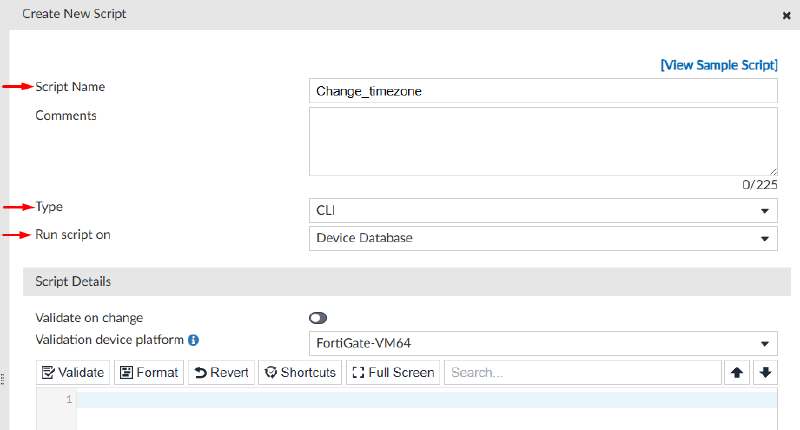
- Set the script properties:
Script NameType: select CLI since we plan to create a CLI type script (other options are Jinja, and Tcl)Run script on: select where you’re planning to run the script on -Device Database,Policy Package or ADOM Database, orRemote FortiGate Directly (via CLI).
- Under
Script Details, insert the CLI commands that will be run on the desired destination.
In this example, a script to change the system time zone is defined:
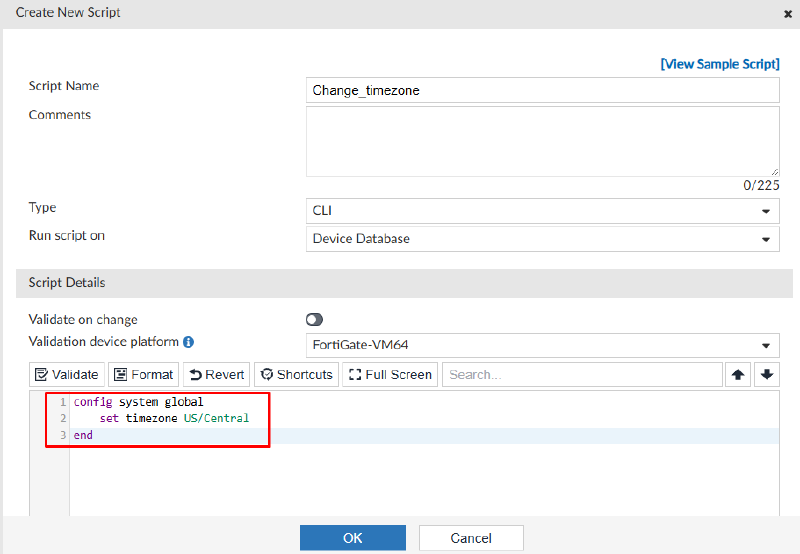
You can use Format buttons to help with proper indentation of command lines.
- Select
OKto save changes, and confirm:

The script is now ready to be run.
Following, some examples with the different types of scripts are run to demonstrate how to use them.
Additional examples can be found here: FortiManager 8.0.0 Administration Guide - Example CLI scripts
1. Example - Running a script on Device Database#
In this example, we want to change the system time zone on a managed FortiGate device. To achieve this, we can create a script to automate this configuration and to be later applied on other managed devices.
We configure the script by specifying the CLI commands that will be run. This configuration will not be applied to FortiGate directly, it will be applied to the Device Database and then pushed to FortiGate, so we select this option under Run script on.
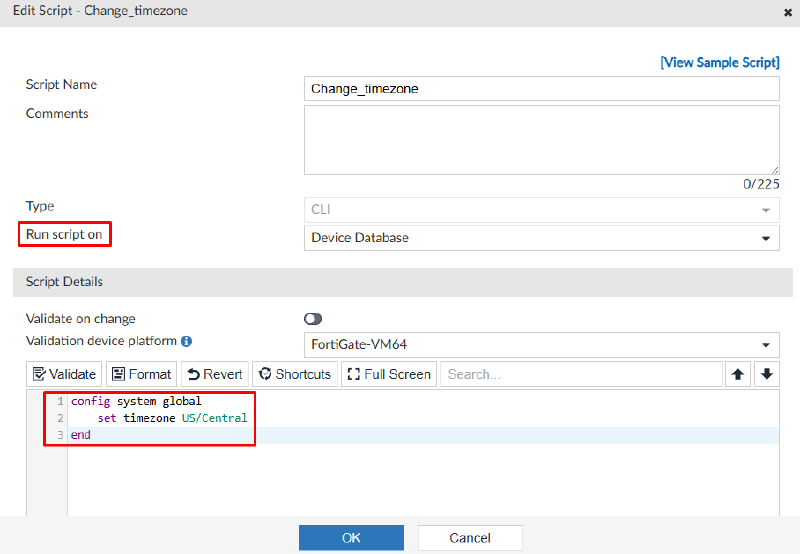
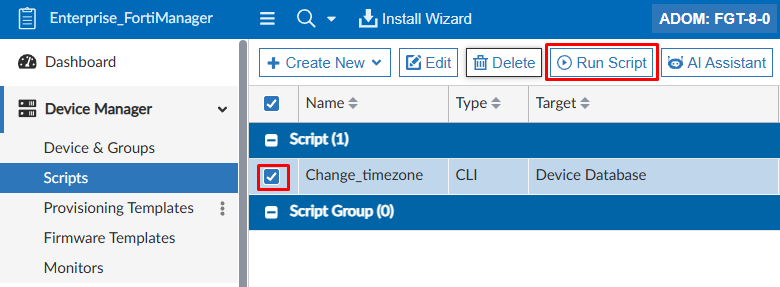
Click OK to save the script. Then select this script and Run Script:
Select the device(s) we plan to run the script on, and the > icon to confirm the selection:
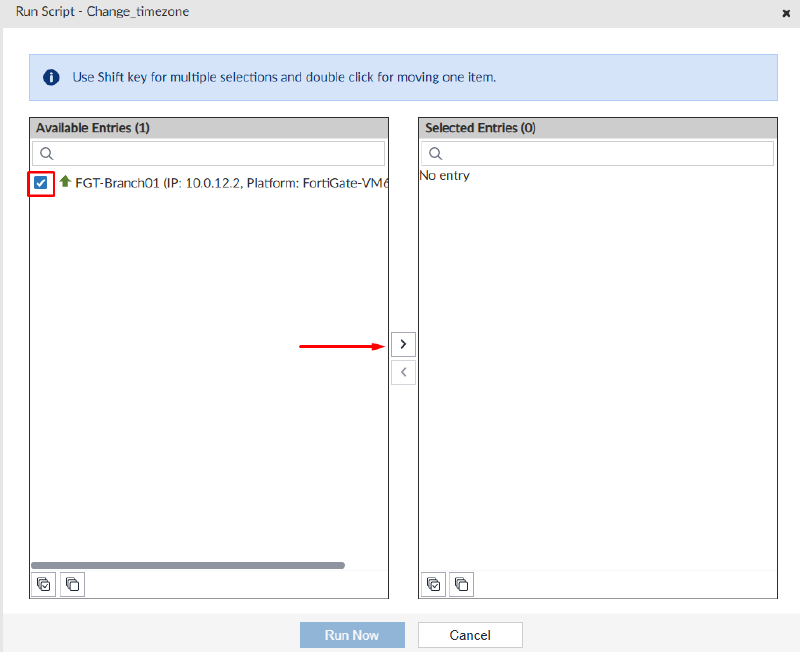
Click on Run Now:
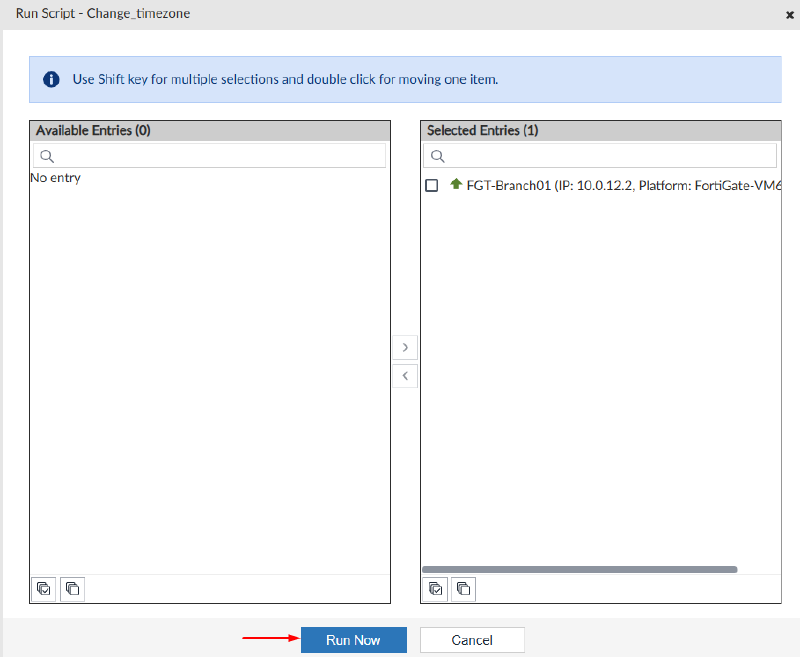
Confirm running the script by clicking OK:
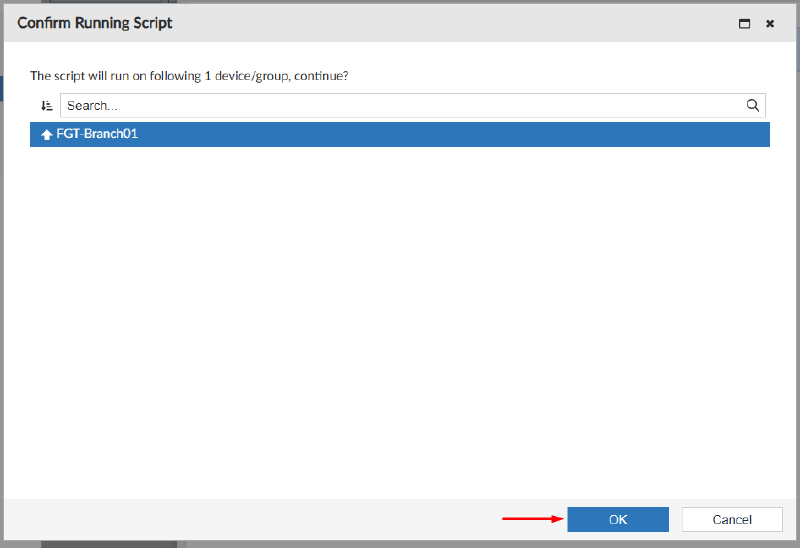
If the script run without errors a successful message will be shown as follows:
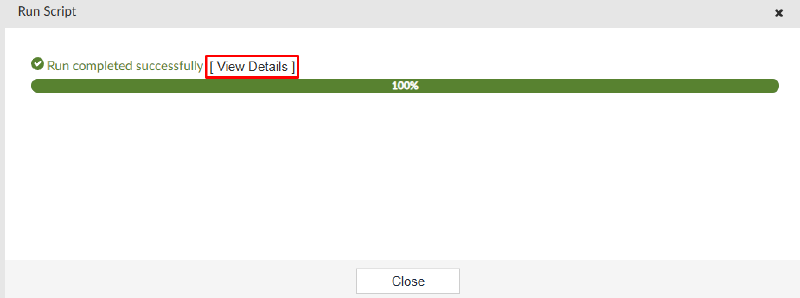
You can click on View Details in case of any error or get more information about the run log.
Proceed with the Close button.
Since the script was run on the device database, the device config status will be shown as Modified:
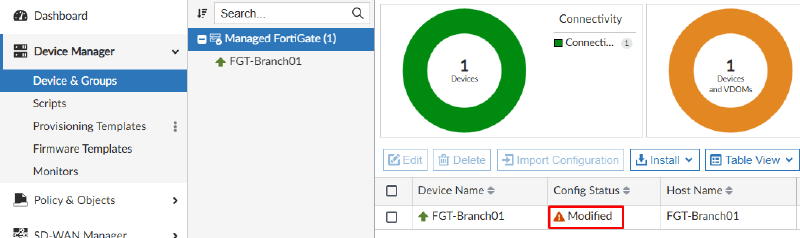
To confirm the changes before installing them on the FortiGate device, you can go to the specific device database setting and verify the change(s) made by the script:
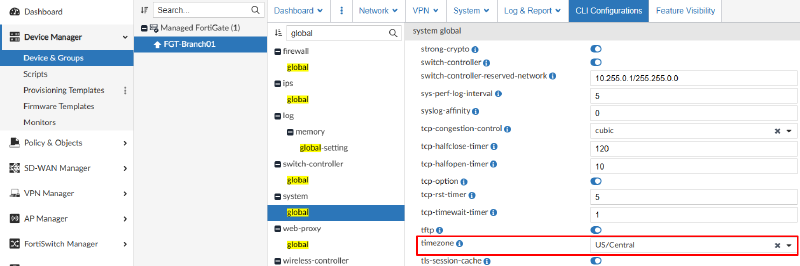
Finally, to apply the changes on the FortiGate device itself, you need to install device settings (using Install Wizard or Quick Install).
2. Example - Running script on Policy Package or ADOM Database#
In this example, we want to create firewall address objects for two different subnets that will then be used on firewall policies of managed firewalls. Since this configuration is part of the ADOM database, and not part of the of the device database, this script should be run on Policy Package or ADOM Database.
The script is configured as follows:
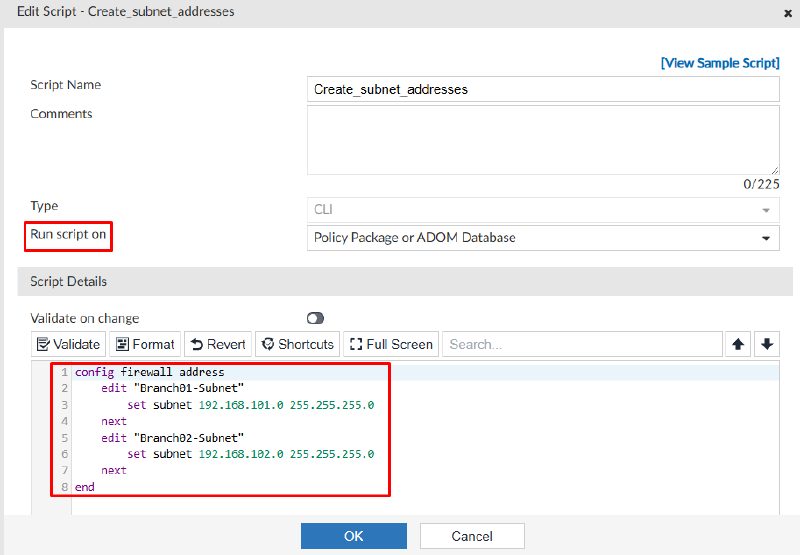
Click OK to save the script. Then select this script and Run Script:
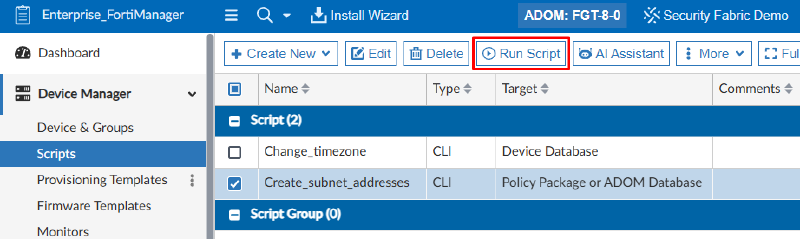
Select the policy package that this script will run on:
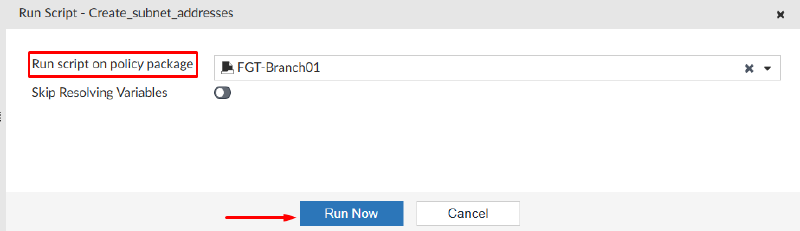
In this specific case, since we are creating address objects, and not firewall policies, it makes no difference the selected policy package. The address objects will create on the ADOM database and will be available for firewall policies under any policy package.
If the script run without errors a successful message will be shown as follows:
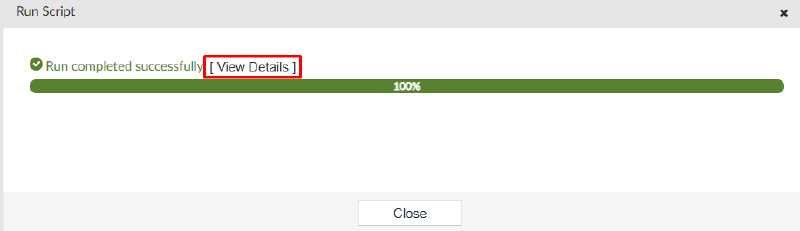
You can click on View Details in case of any error or get more information about the run log.
Proceed with the Close button.
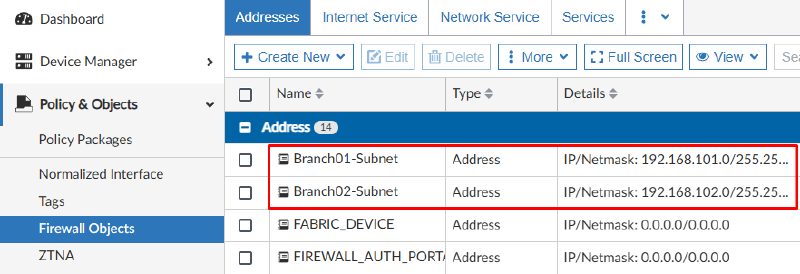
To confirm the addresses were created on the ADOM database, go to Policy & Objects > Firewall Objects > Addresses:
3. Example - Running script on Remote FortiGate Directly (via CLI)#
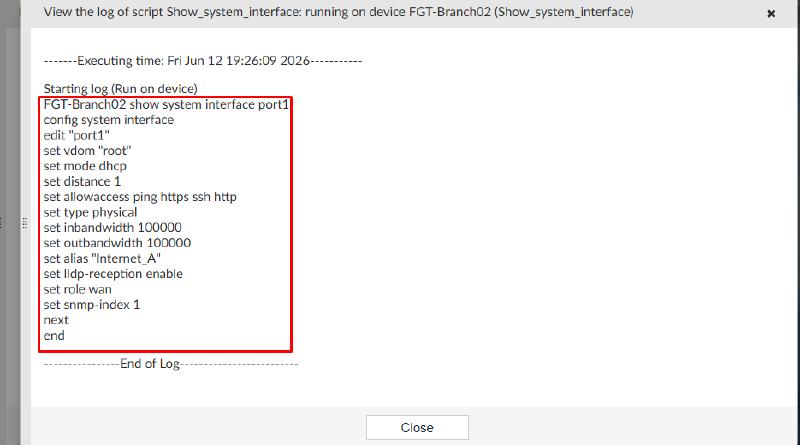
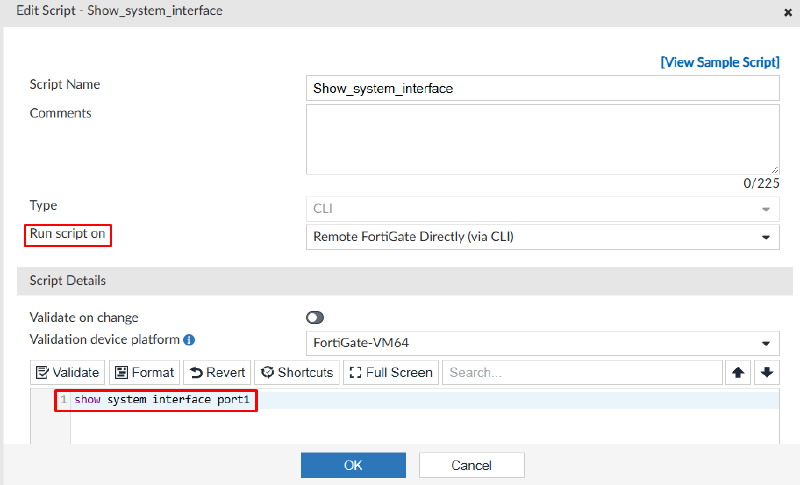
In this example, we want to show interface details of port1 on a managed FortiGate. Because we only want to get the configuration information from the managed device, the script can be run on Remote FortiGate Directly (via CLI).
The script is configured as follows:
Click OK to save the script. Then select this script and Run Script:
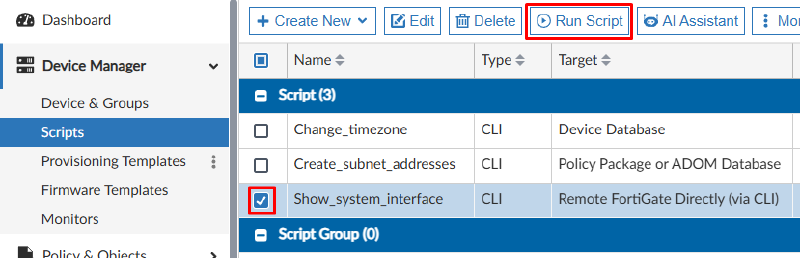
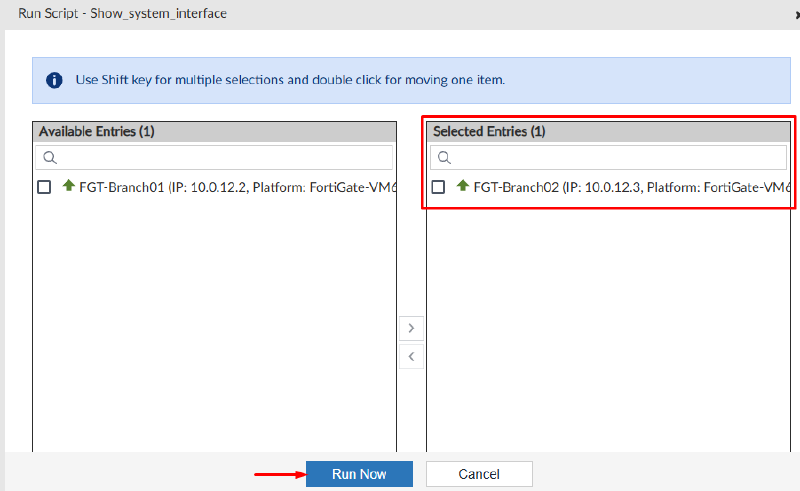
Move the managed FortiGate(s) to run the script on to the right section, as a selected entry. Then select Run Now:
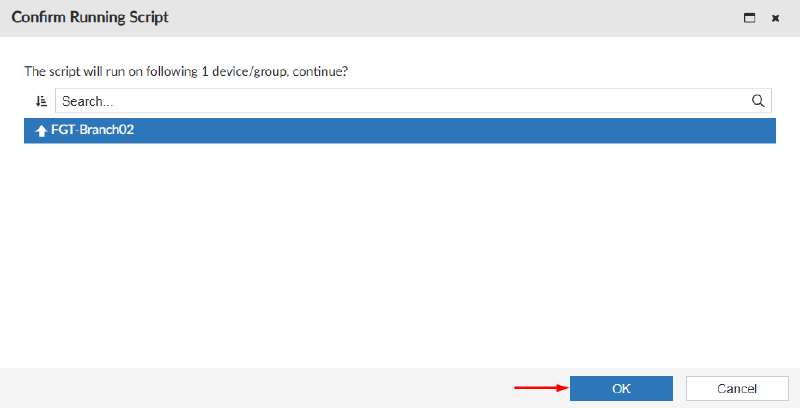
In the next pop up window, click OK to proceed with the script execution:
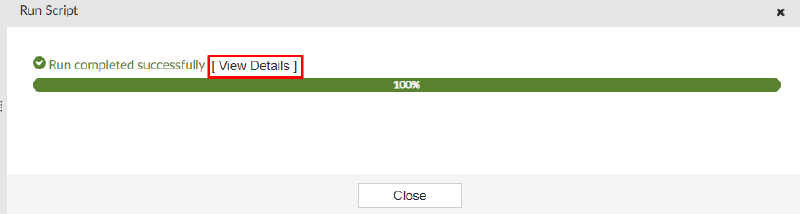
To get the output of this script, click on View Details:
Under Details column, select the right icon:
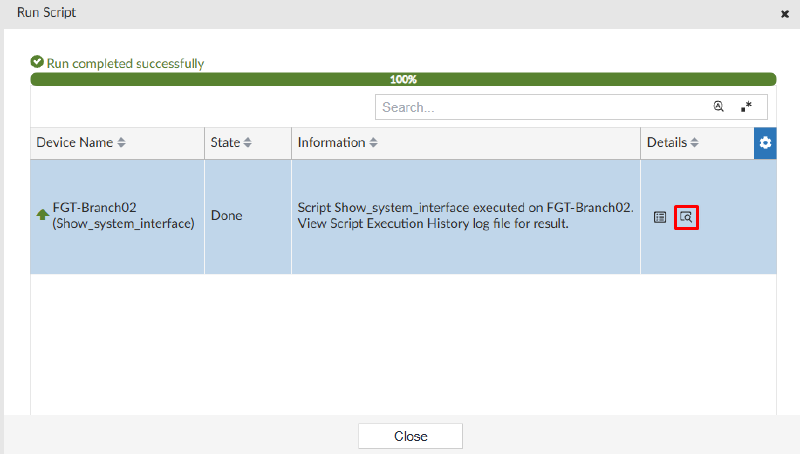
A log with output of the script is shown with the information we wanted to retrieve: