By default, client-certificate authentication is enabled on ZTNA access proxy servers. This means that the client connecting to the protected resource is authenticated by providing its certificate (signed by FortiClient EMS) to the proxy (FortiGate). See how to configure a basic ZTNA Access Proxy in this article: ZTNA Access Proxy with Certificate Authentication - LabFound.
On top of certificate-based authentication, local user authentication can be used to enforce the authentication process when accessing the protected ZTNA resource. In this case, “local user” refers to FortiGate local users.
The configuration involves configuring an authentication scheme and authentication rules, as well as setting up the ZTNA firewall policy to authenticate those users.
Pre-requisites#
- FortiGate and EMS are connected via security fabric.
- FortiClient is connected to EMS and the ZTNA feature is installed.
- The following objects are in place on FortiGate:
- ZTNA server
- ZTNA firewall policy
All previous requirements are explained and configured in detail in the following article: ZTNA Access Proxy with Certificate Authentication - LabFound.
Reviewing the initial ZTNA Configuration#
As previously mentioned, the following ZTNA configuration is already in place on the FortiGate, according to the article ZTNA Access Proxy with Certificate Authentication - LabFound.
- ZTNA server:
Policy & Objects > ZTNA > ZTNA Server:
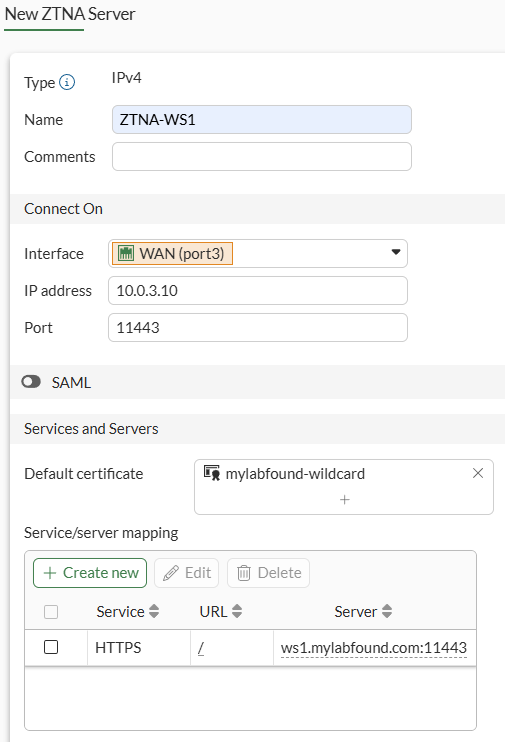
FortiGate is listening for connections on its WAN interface trying to reach 10.0.3.10:11443. Connections are proxied to an internal HTTPS web service ws1.mylabfound.com:11443 (which translates to 10.88.0.3:11443) if the corresponding ZTNA firewall policy allows it.
According to the default ZTNA server configuration, a client certificate signed by the EMS must be presented to the FortiGate for authentication and allowing the connection.
- ZTNA firewall policy:
Policy & Objects > Firewall Policy:
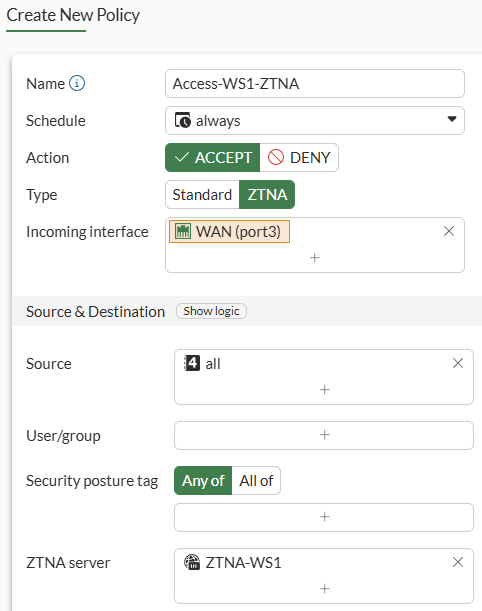
The ZTNA firewall policy allows all (authenticated) connections coming from the WAN interface to the ZTNA server.
Step 1 - Configuring an Authentication Scheme#
To enforce user authentication for ZTNA server access, two new objects must be configure on FortiGate:
- Authentication scheme
- Authentication rule
An authentication scheme specifies the authentication method(s) that will be allowed, e.g. local user database, remote LDAP servers, SAML, etc. In this case, basic authentication using local users will be applied.
The authentication scheme is configured as follows:
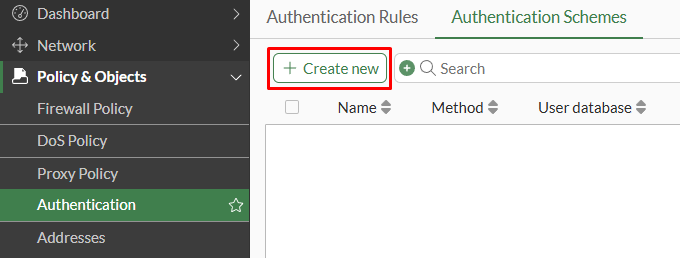
- Navigate to
Policy & Objects > Authentication > Authentication Schemes. Click onCreate new:
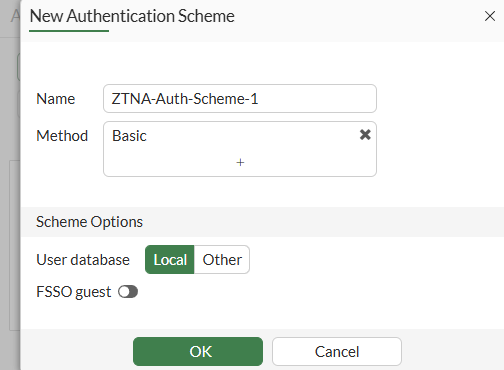
- Set the authentication scheme properties:
NameMethod- selectBasicUser database- selectLocal(for authenticating local FortiGate users)
- Select
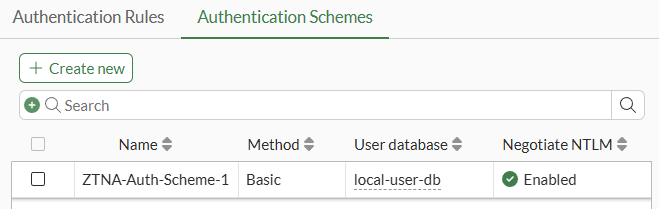
OKto save changes:
Step 2 - Configuring an Authentication Rule#
The authentication rule defines which source traffic trying to access the proxy will require to be authenticated and what authentication scheme will be enforced.
In the current example where local users will authenticate to access the ZTNA server, the authentication rule is configured as follows:
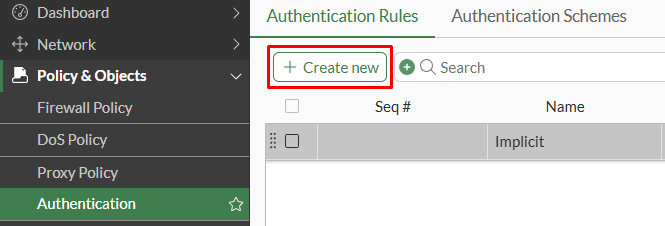
- Under
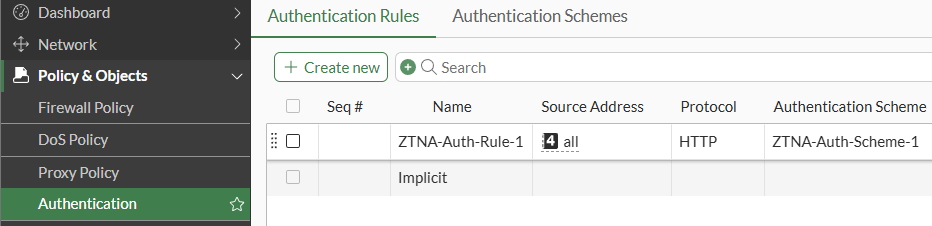
Policy & Objects > Authentication > Authentication Rules, selectCreate new:
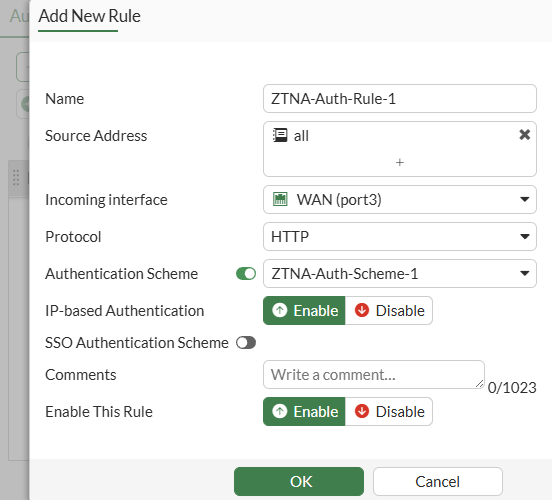
- Specify the rule parameters, including the following:
NameSource address- any IP addressIncoming interface- WAN interfaceProtocol- HTTPAuthentication Scheme- enable this option and select the previously created authentication scheme.IP-based Authentication- EnableEnable This Rule- Enable
- Press
OKto save changes.
Step 3 - Modifying the ZTNA firewall policy#
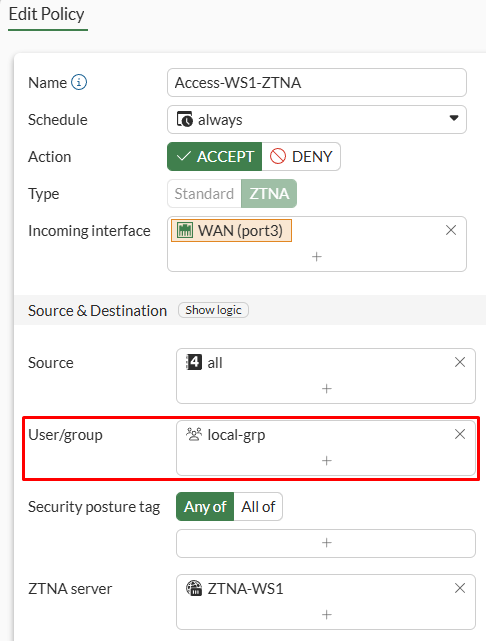
Having an authentication scheme and an authentication rule configured, authentication is still not enforced when accessing the ZTNA server. Additionally, the ZTNA firewall policy needs to be configured with a user group or users to require authentication.
Follow these steps to configure a user group in a ZTNA firewall policy:
- Go to
Policy & Objects > Firewall Policyand edit the ZTNA firewall policy. Select the user group that will have access to the server:
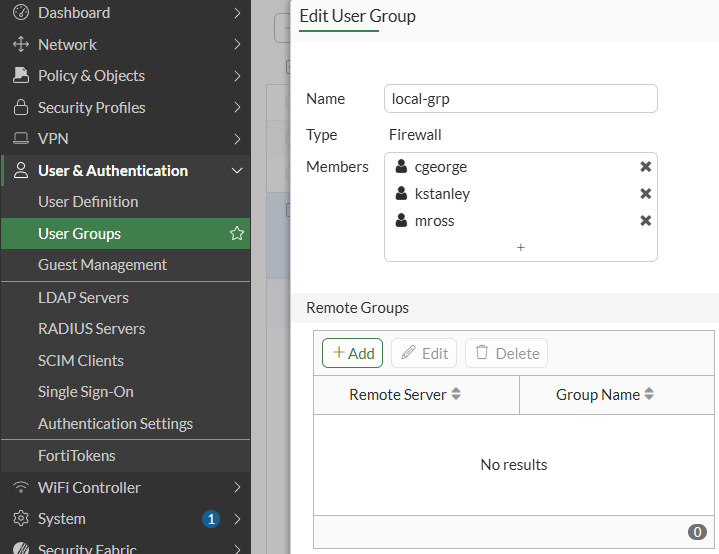
In this case local-grp is a group with local users only:
- Press
OKto save changes.
Testing Local User Authentication#
Authentication scheme, authentication rule, and ZTNA firewall policy with user/group are in place. Next, user authentication can be tested from a user connecting from the WAN:
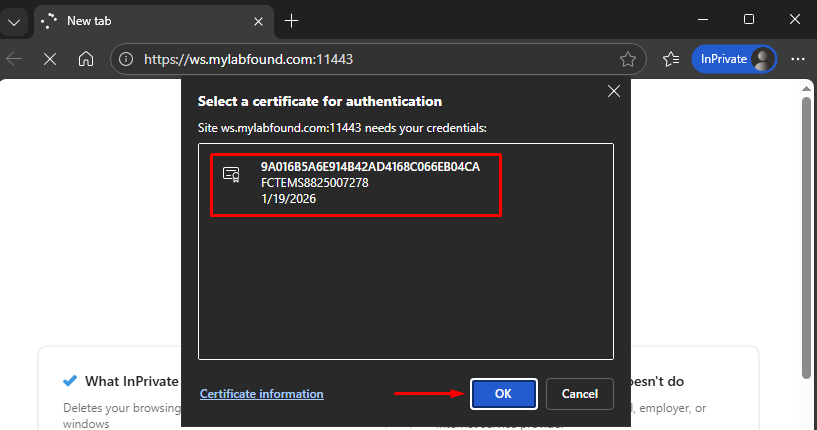
- On the browser open an incognito/InPrivate tab and enter the URL. Select the client certificate signed by the EMS as the first authentication step (certificate authentication):
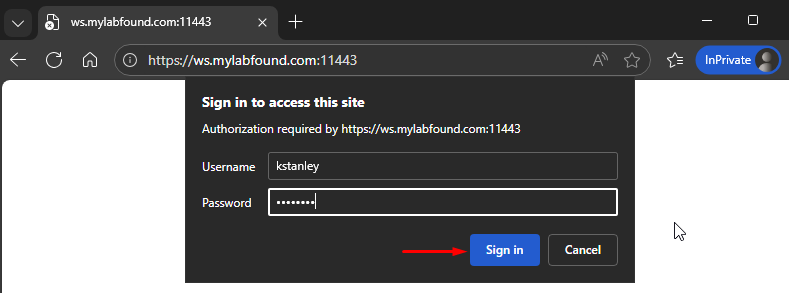
- After certificate validation, a new prompt requiring username and password appears. Insert the username credentials of a user that is part of the user group defined in the firewall policy:
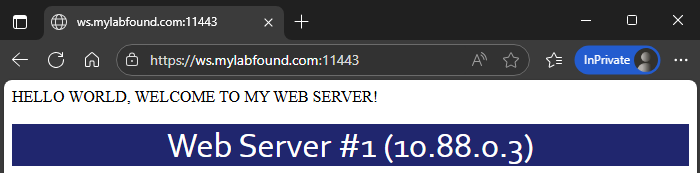
- If credentials are valid, the website loads:
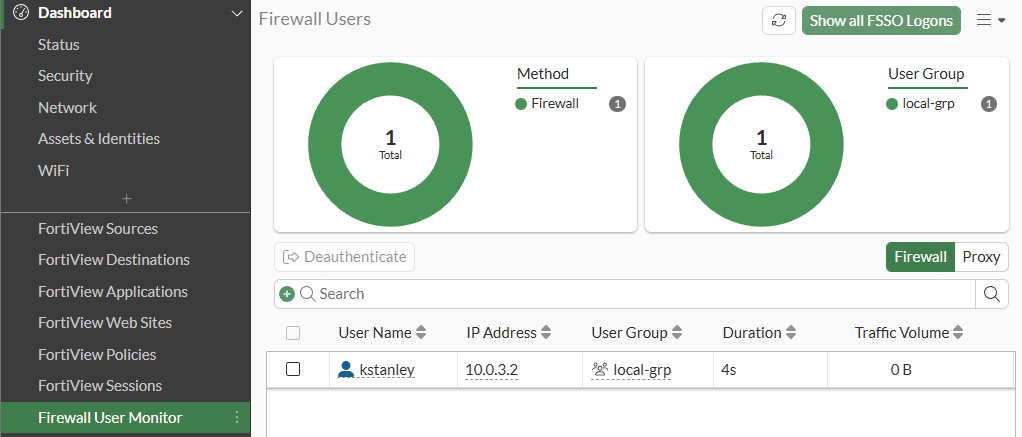
- On FortiGate, you can validate the logged in user under
Firewall User Monitorwidget:
A CLI command that provides more information is the following:
# diag firewall auth list

10.0.3.2, kstanley
        type: fw, id: 0, duration: 48, idled: 48
        expire: 252, allow-idle: 300
        packets: in 0 out 0, bytes: in 0 out 0
        user_id: 16777218
        group_id: 2
        group_name: local-grp

----- 1 listed, 0 filtered ------
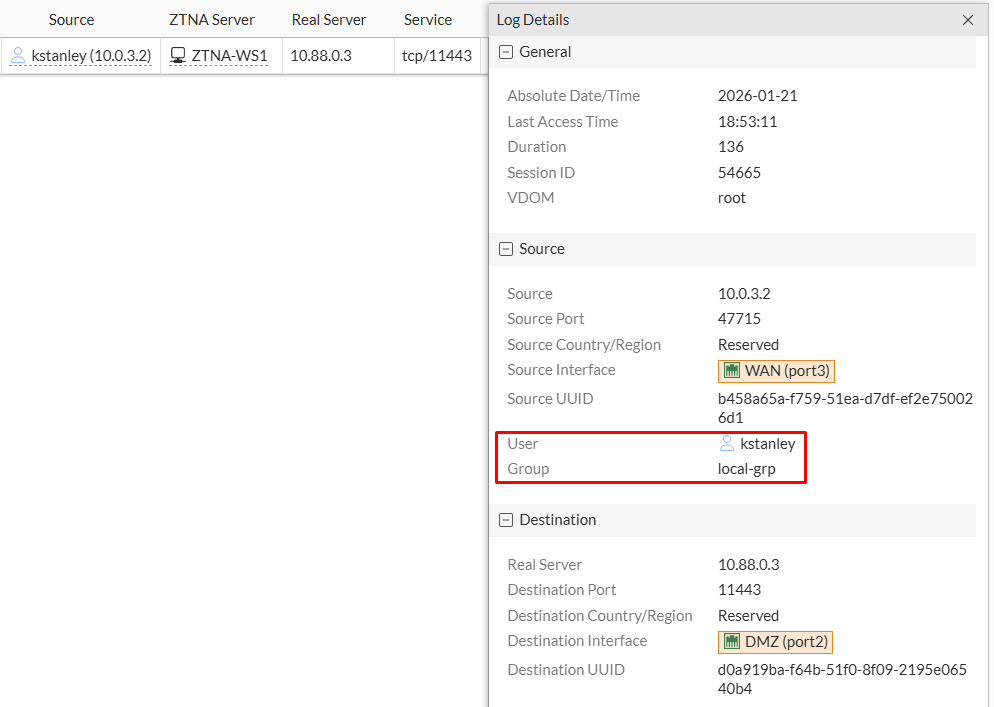
The ZTNA logs also provides the authenticated user information:
Log & Report > ZTNA Traffic: