
Introduction#
When protecting communications from remote users trying to access an internal resource behind FortiGate, different options exist for applying authentication and authorization.
First, for authentication the following options can be used:
- SSL-VPN: commonly used for remote access from individual users over TLS on TCP/443. Two different modes are supported: tunnel and web.
- IPsec VPN: typically used for site-to-site connectivity. However, a dial-up VPN can be setup to support remote users. Furthermore, using IKEv2 (instead of IKEv1), supports configuring TCP over port 443. This enables IKE negotiation over TCP, encapsulating ESP packets inside TCP headers.
- ZTNA proxy: a private application/service is exposed to remote users using FortiGate as a public proxy. Client certificate authentication and credentials-based authentication are supported. The communication is secured over TLS between the endpoint and the proxy. EMS and licensed FortiClient is required for this authentication method to work properly.
For VPNs, once the endpoint is connected, it’s fully trusted. While, for ZTNA, the client certificate is checked for each request based on it’s zero trust model.
After the endpoint has authenticated, authorization is enforced via firewall policies. FortiGate allows to define two types of firewall policies:
- Standard: traditional firewall policies matching source zone/interface/IP/user and destination zone/interface/IP, reinforced with security profiles.
- ZTNA: similar to standard policies but security posture can be analyzed using security posture tags (previously known as ZTNA tags) for a defined ZTNA server destination.
Security posture tags are not only used for the authorization process on ZTNA firewall policies, they can also be enforced when the user is trying to connect to a VPN tunnel. Following, this will be put to test.
In this article, two different methods are discussed regarding the enforcement of dialup VPN connections from FortiClient using security posture tags.
Topology and Pre-requisites#
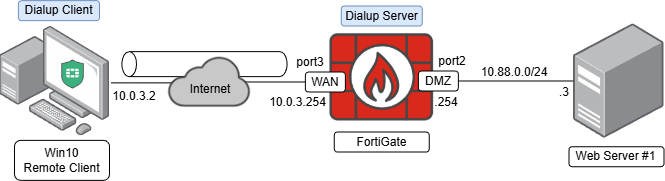
- FortiGate’s EMS Fabric connector is connected to the EMS and tags are synched. Check Labfound - Connecting FortiGate with EMS and Syncing tags as reference.
- A remote access endpoint profile is configured on EMS so FortiClients can connect to FortiGate configured as a dialup server according to the topology above. Check Labfound - Configuring IPsec VPN with FortiClient as Dialup client to review the IPsec and EMS configuration details.
Enforcing remote access profile with security posture tag#
This is the one of the two methods that can be used for enforcing security posture on users with FortiClient trying to connect to a VPN dialup on FortiGate. Using this method, the remote access endpoint profile on EMS is configured to enforce VPN connections using security posture tags. In this method, the enforcement is done at the host level; this means that if the connection is rejected, FortiGate won’t see any packet coming from the client (no VPN logs).
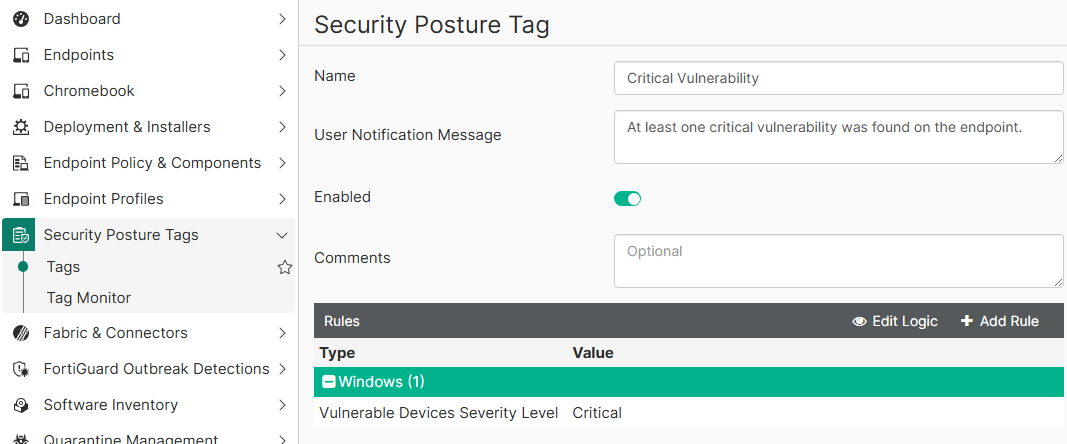
For example, the following security posture tag named “Critical Vulnerability” is created for tagging endpoints with at least one critical vulnerability found on the endpoint after a vulnerability scan:
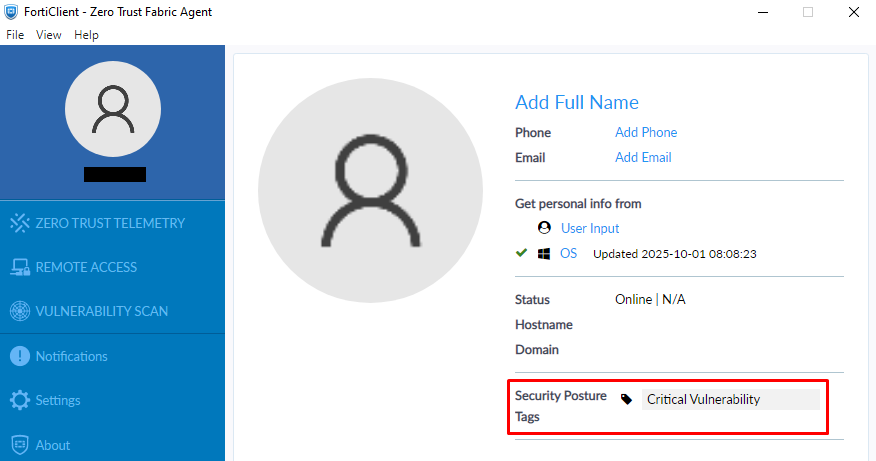
The endpoint trying to connect to the VPN is currently tagged with the “Critical Vulnerability” tag:
For this scenario, to block any user with a critical vulnerability, i.e. tagged with “Critical Vulnerability” from connecting to the VPN, the following configuration must be applied on the EMS:
- On EMS, go to
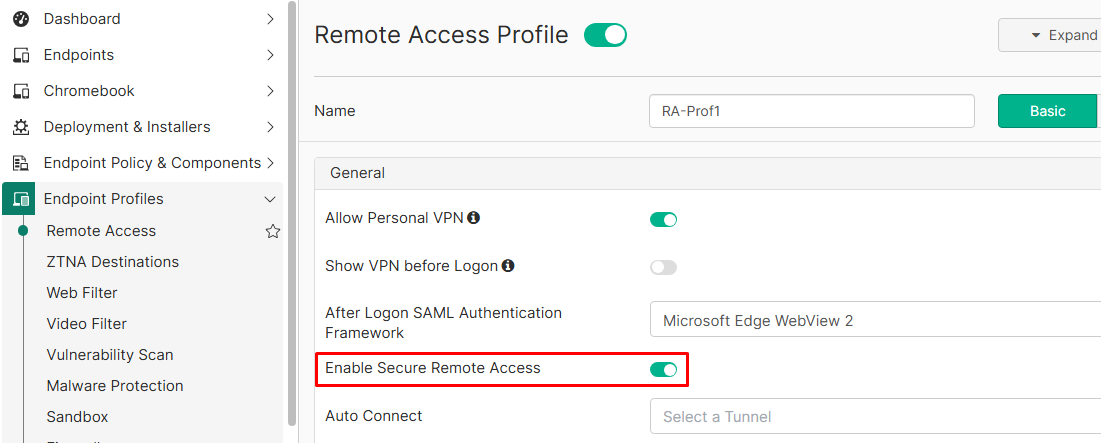
Endpoint Profiles > Remote Accessand edit the relevant remote access profile. - Under
Generalsection, turn on theEnable Secure Remote Accessoption:
- Select the desired VPN tunnel you are planning to enforce with security posture tag validation, and click on
Edit Tunnel:
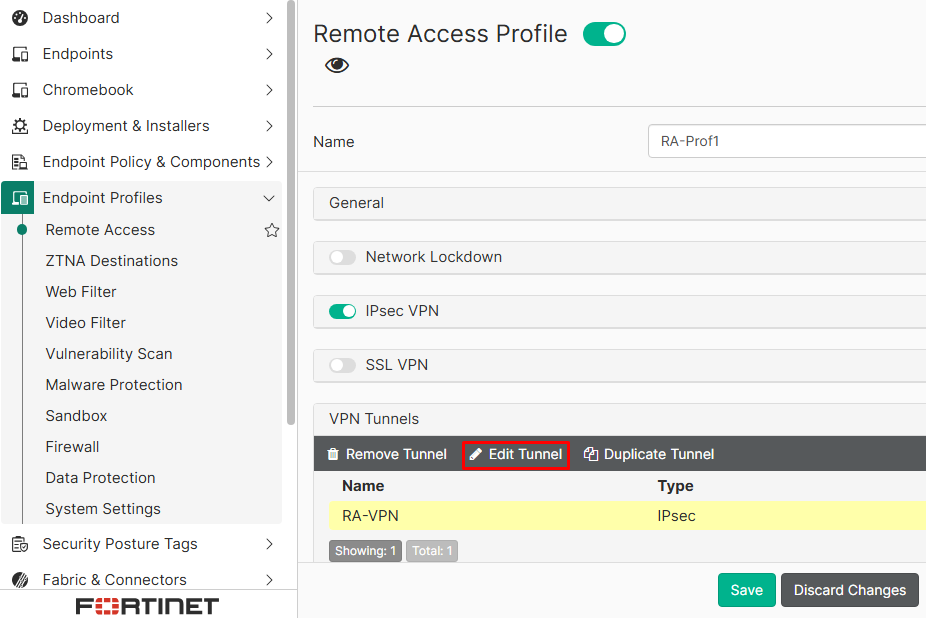
- Go to
Advanced Settingssection, underTagsyou can select a tag and the desired action (allow/prohibit) if the tag is matched for a user trying to connect to the VPN:
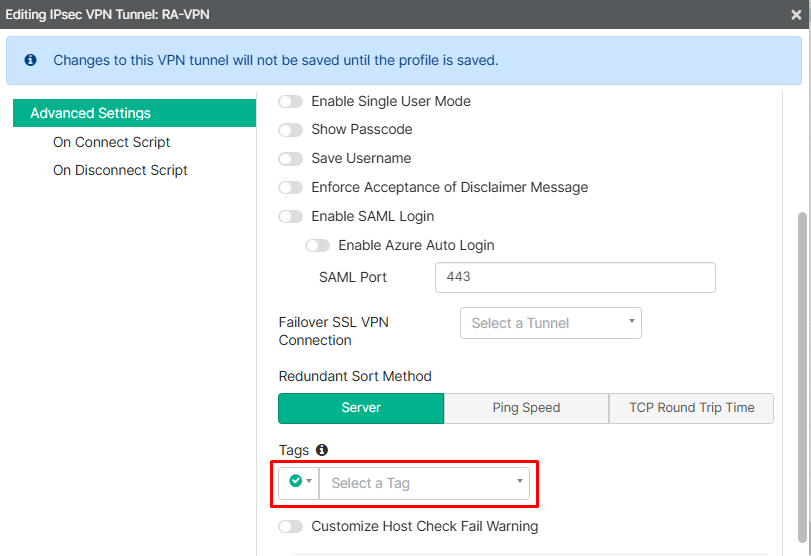
Depending on the selected action the enforcement is as follows:
- Allow: if the endpoint doesn’t have the selected tag, the VPN connection is rejected.
- Prohibit: if endpoint has the selected tag, the VPN connection is rejected.
In this example, any endpoint with Critical Vulnerability tag, is prohibited from connecting to the VPN:
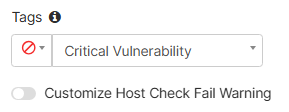
- Optionally, enable the
Customize Host Check Fail Warningoption, which allows to define a message that will be displayed to users when their connection to the VPN is prohibited:
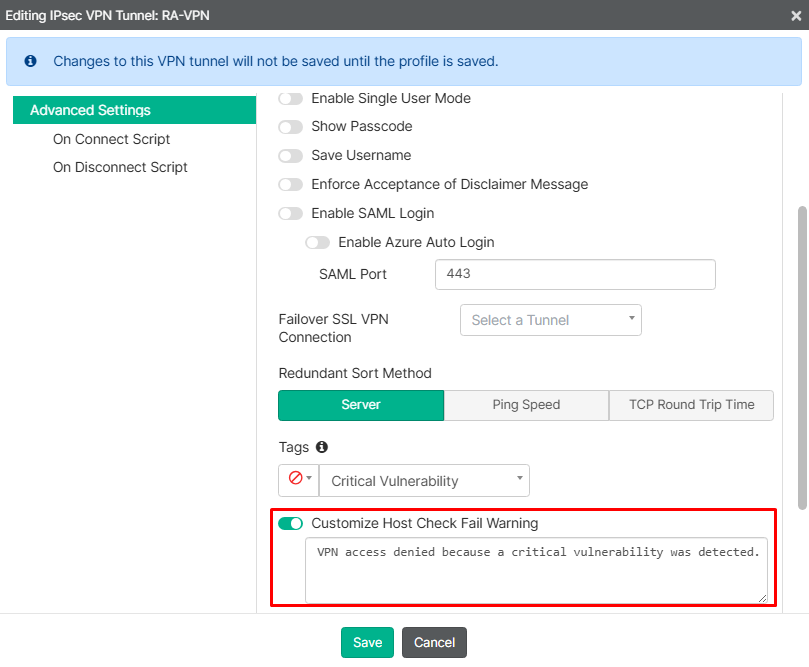
Savethe VPN tunnel configuration, thenSavethe remote access profile.- From the endpoint tagged with a
Critical Vulnerability, the VPN connection will be refused and the defined notification message will pop up as shown:
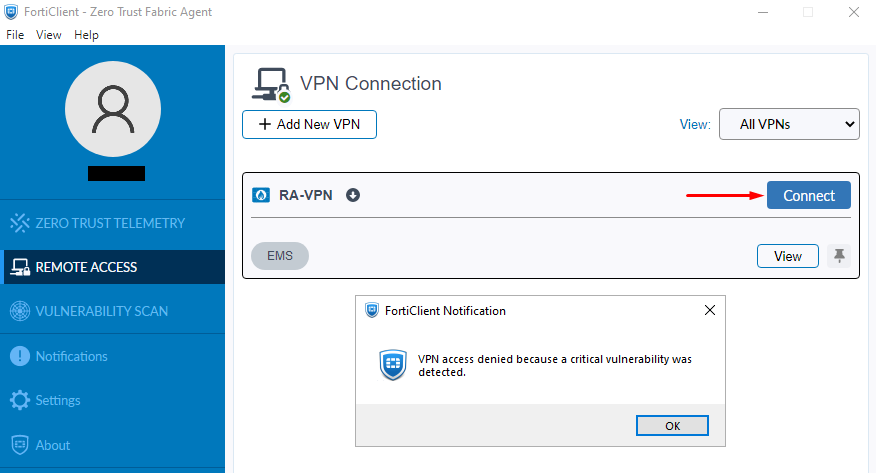
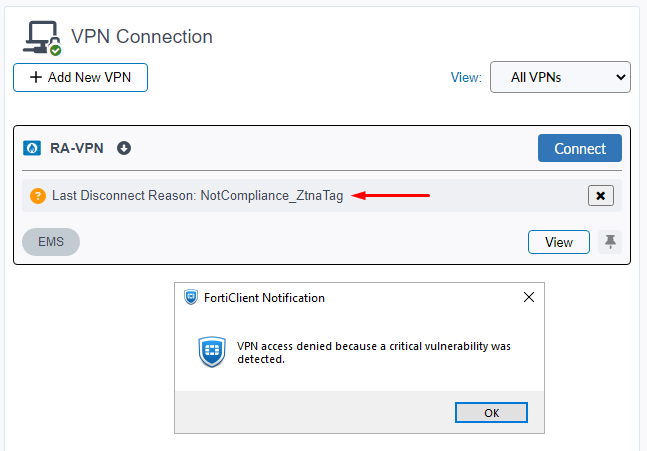
An important feature added starting FortiClient 7.4.3 is that endpoints already connected to the VPN are periodically verified for checking their tag compliance status. If the endpoint matches the prohibited security tag or doesn’t have the allowed security tag any more, the VPN is disconnected showing the following error together with the admin-defined pop up message:
Check FortiClient 7.4.0 New Features - Security posture tag enforcement during VPN connection (7.4.3) as reference.
Enforcing FortiGate Dialup VPN with security posture tag#
This is the second method that can be used to enforce security posture on users with FortiClient trying to connect to a VPN dialup on FortiGate. This method requires configuring the Authentication section of the VPN on FortiGate by specifying the tag(s) that needs to be matched for allowing the connection of the endpoint. In this method, the enforcement is done at the FortiGate level, so VPN logs would show when a endpoint was rejected because of security posture enforcement.
For example, the endpoint trying to connect to the VPN according to the topology currently has the following tags:
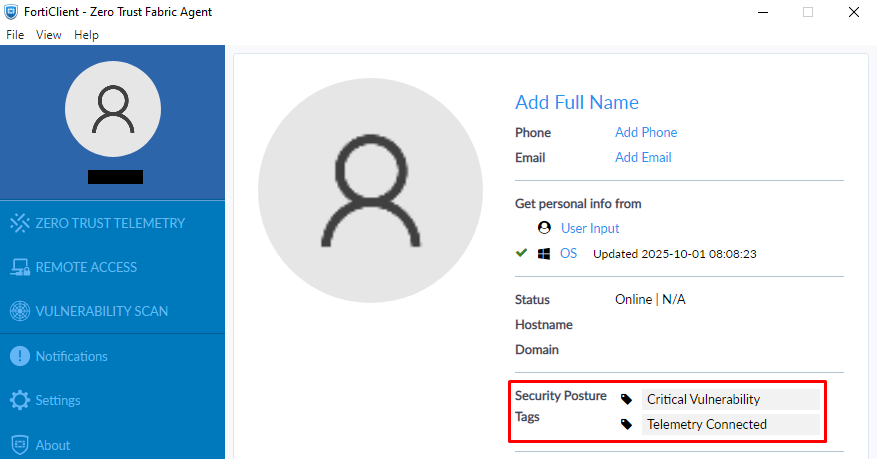
In this case, to enforce endpoints that have at least one of the following tags:
- “Telemetry connected”: endpoint with FortiClient connected to the EMS.
- “Antivirus running”: endpoint with a running antivirus software.
the following configuration is applied on FortiGate::
- Go to
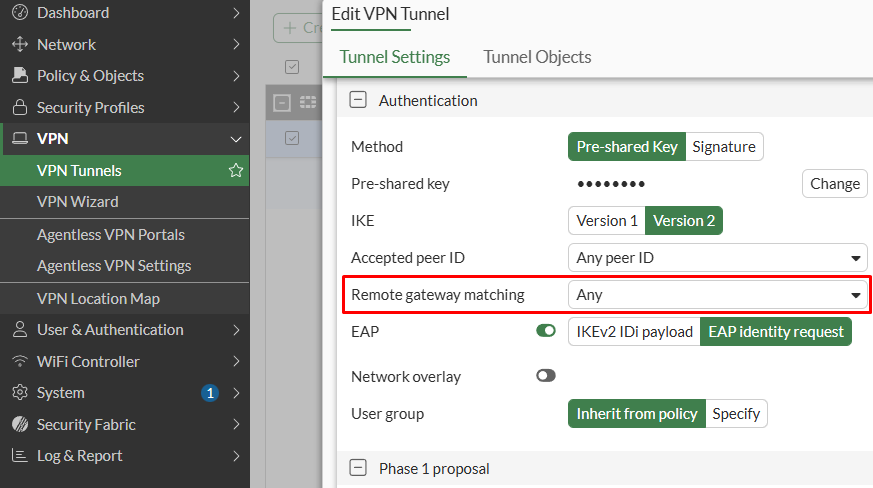
VPN > VPN Tunnelsand edit the IPsec dialup tunnel that will be enforced with security posture tag. Focus on theAuthenticationsection:
- Set the
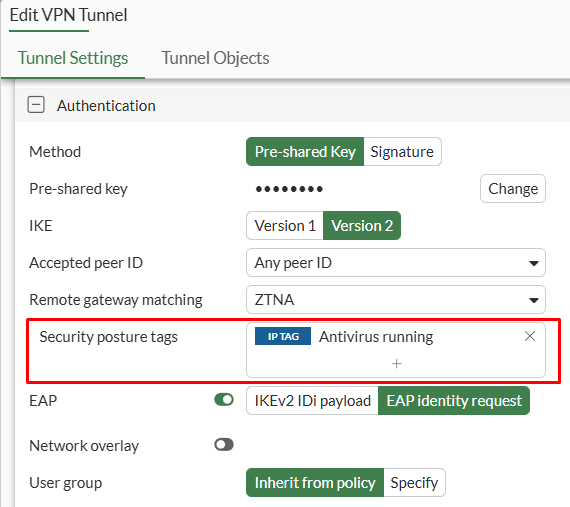
Remote gateway matchingsetting toZTNA, and then specify the desiredSecurity posture tags:
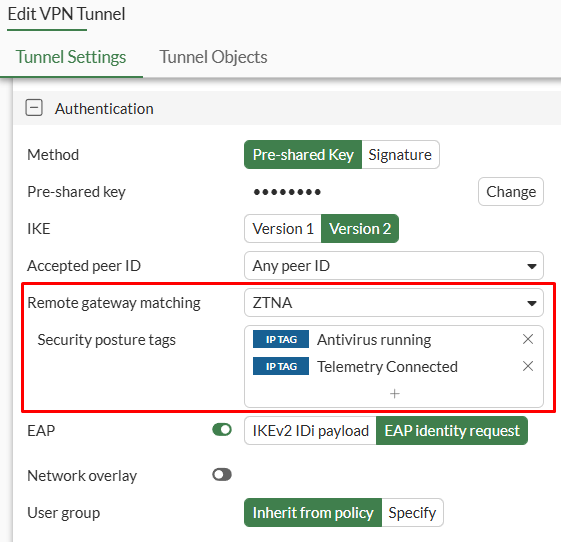
If multiple tags are selected, at least one tag must match so the client can connect to the VPN.
The equivalent CLI configuration is as follows:
config vpn ipsec phase1-interface
    edit "RA-VPN"
        set remote-gw-match ztna
        set remote-gw-ztna-tags "EMS1_ZTNA_Antivirus running" "EMS1_ZTNA_Telemetry Connected"
    next
end
- Press
OKto save changes.
In order for FortiGate to properly enforce security posture tags on VPN connections, it’s required to have tag information shared from EMS updated and complete on FortiGate. This means that the tags on FortiGate must resolve to the endpoint IP address(es) that are actually tagged with them.
For EMS to share all endpoints’ resolved IP addresses to the fabric connected FortiGate, even if their gateway don’t point to the linked FortiGate, change Only share FortiClietns connected to this fabric device (Recommended) to Share all FortiClient, under Fabric & Connectors > Fabric Devices:
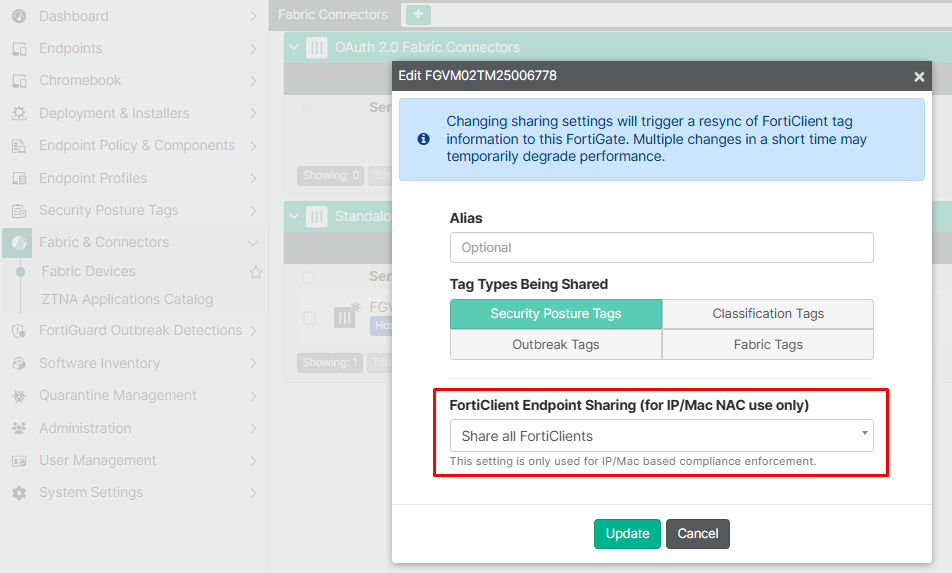
Check additional information regarding each FortiClient endpoint sharing mode here: FortiClient 7.4.4 EMS Administration Guide - Fabric and also FortiClient 7.4.4 EMS Administration Guide - Matched endpoints and resolved addresses
To confirm all IP addresses resolved by a tag on FortiGate, use the GUI or CLI:
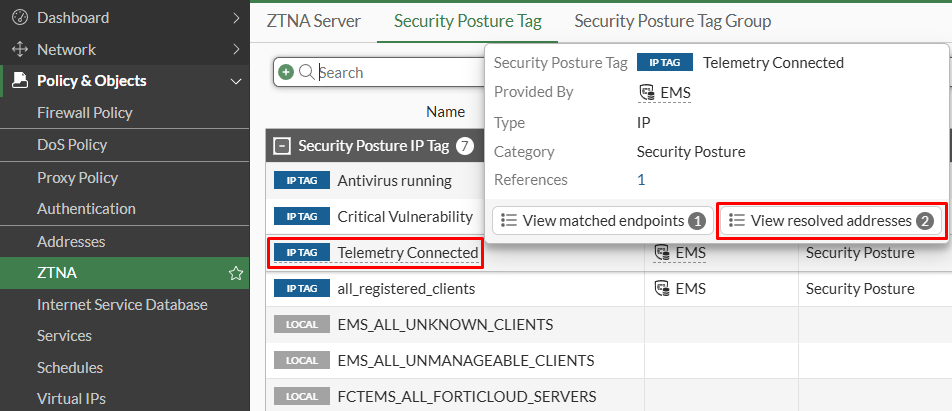
- On GUI, navigate to
Policy & Objects > ZTNA, selectSecurity Posture Tag, hover over the desired tag, and selectView resolved addresses:
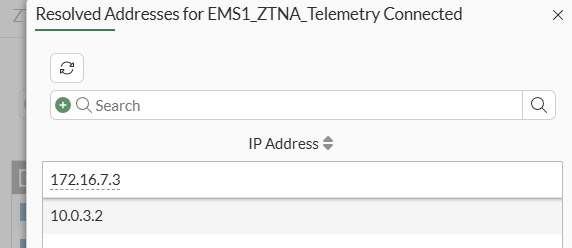
The list of resolved IP addresses for the selected tag is shown:
- On CLI, execute the following command specifying the dynamic address name:
# diagnose firewall dynamic list [name]
- For example:
# diagnose firewall dynamic list "EMS1_ZTNA_Telemetry Connected"

CMDB name: EMS1_ZTNA_Telemetry Connected
TAG name: Telemetry Connected
EMS1_ZTNA_Telemetry Connected: ID(81)
        ADDR(172.16.7.3)
        ADDR(10.0.3.2)
Total IP dynamic range blocks: 0.
Total IP dynamic addresses: 2.
Testing security posture tag enforcement#
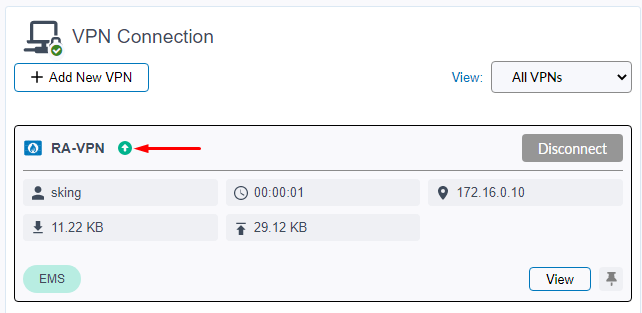
Since the user trying to connect is currently tagged with “Telemetry Connected”, the VPN connection is successful:
To verify what happens when no tag is matched, the “Telemetry connected” tag is removed on the FortiGate VPN configuration, only leaving “Antivirus running” which is not currently tagged on the endpoint:
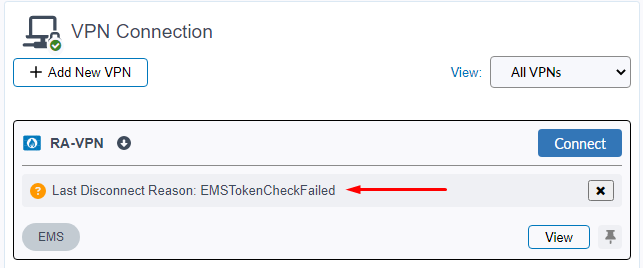
When the user tries to connect to the VPN again, an “EMSTokenCheckFailed” error is shown:
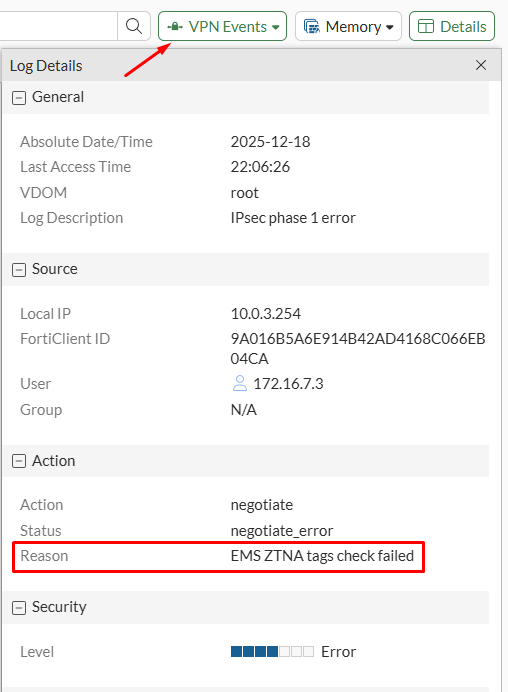
On FortiGate, go to Log & Report > System Events and select the VPN Events. Here, an Error log will also specify the reason why the VPN connection was not possible:
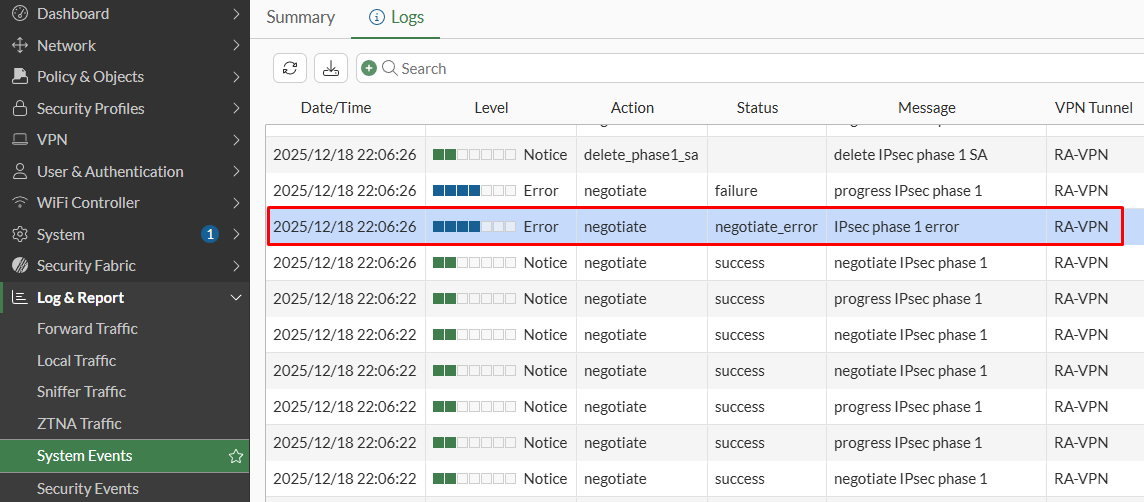
The Reason field of the log indicates EMS ZTNA tags check failed:
Regarding SSL VPN and Security Posture Tag Enforcement#
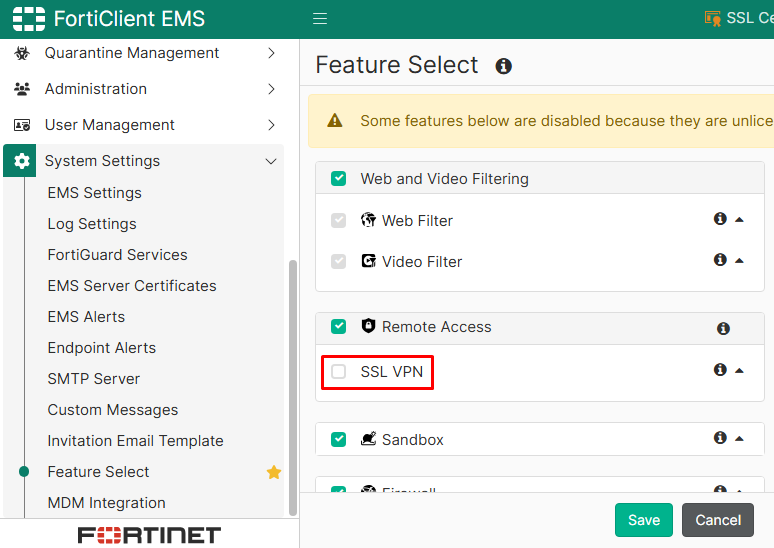
In FortiClient EMS 7.4, the SSL VPN configuration is not available by default because of the security risk implications. Furthermore, SSL VPN is not supported on FortiGate 7.6.3 and above. However, you can still configure SSL VPN on EMS remote access profiles by manually enabling this feature visibility:
- Go to
System Settings > Feature Select, underRemote Access, enableSSL VPN:
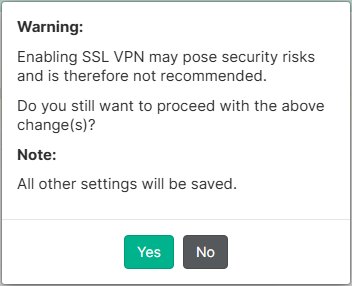
- Accept the warning message clicking on
Yes:
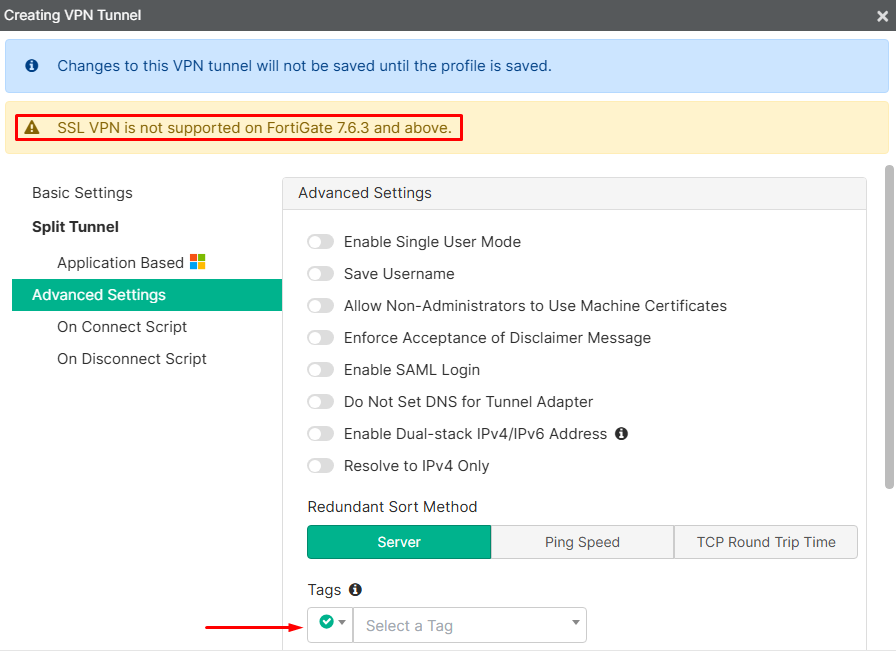
- Now it’s possible to configure SSL VPN tunnels on remote access profiles and apply security tag posture on them. However, the warning regarding the support of SSL VPN on FortiGate is still valid:
References#
- Reddit - Security posture tags only sent to FGT via active VPN connection
- FortiClient 7.4.3 EMS Administration Guide - Configuring a profile to allow or block endpoint from VPN tunnel connection based on the applied security posture tag
- FortiClient 7.4.0 New Features - Security posture tag enforcement during VPN connection (7.4.3)
- FortiOS 7.6.4 Administration Guide - Enforcing security posture tag match before dial-up IPsec VPN connection
- YouTube - Security Compliance Check Using EMS 7.0 Tags for Remote VPN Users
- SSL VPN to IPsec VPN Migration